Let's Properly Set Up That New External SSD You Just Purchased
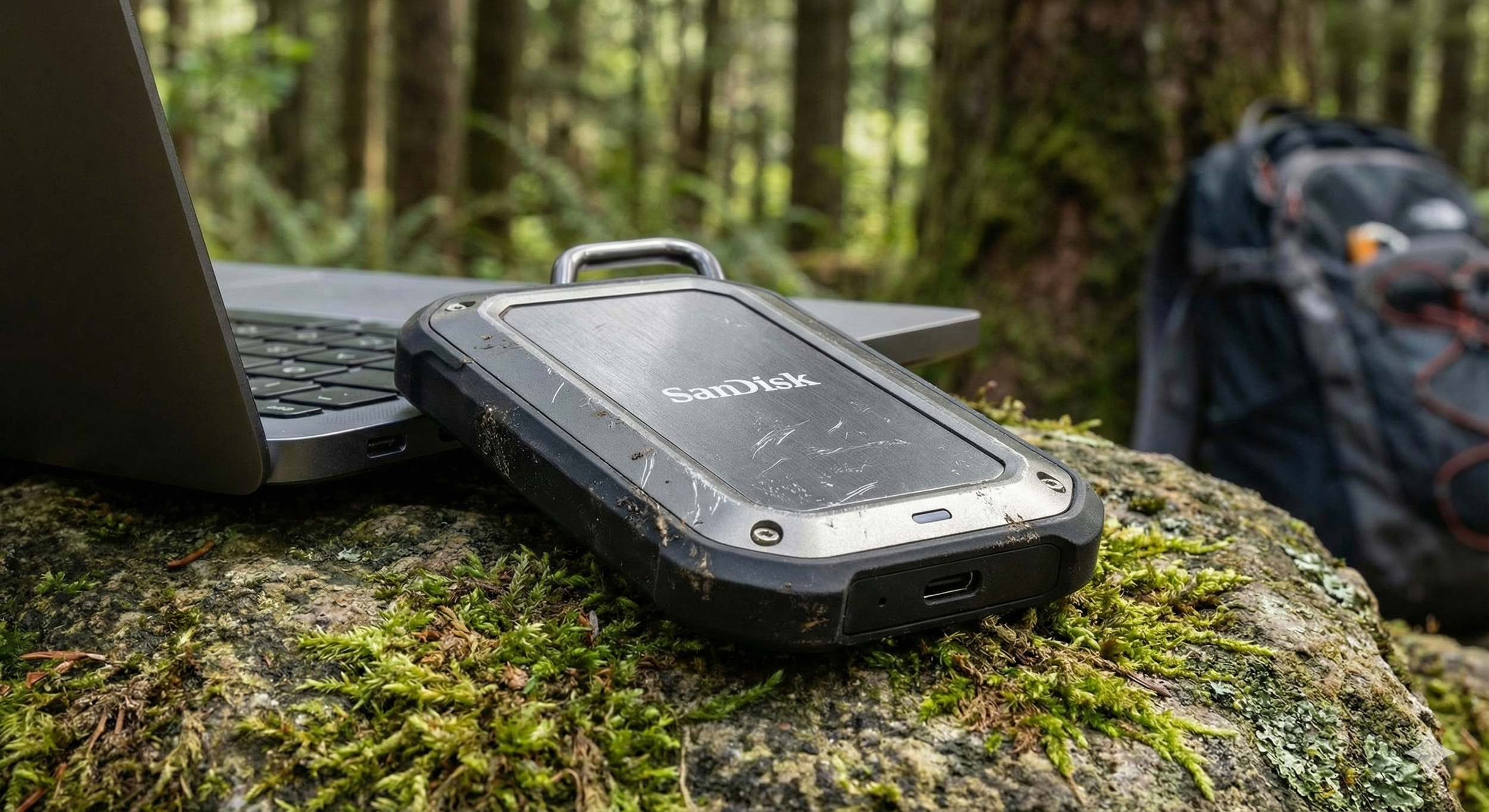
External Solid State Drives (SSDs) are a fast, reliable way to expand your computer's storage, back up your important files, or carry large projects while on the go. Unlike traditional hard drives, SSDs have no moving components, which means faster file access and greater durability. With that said, if you just purchased a new external SSD, I'll show you how to set it up properly.
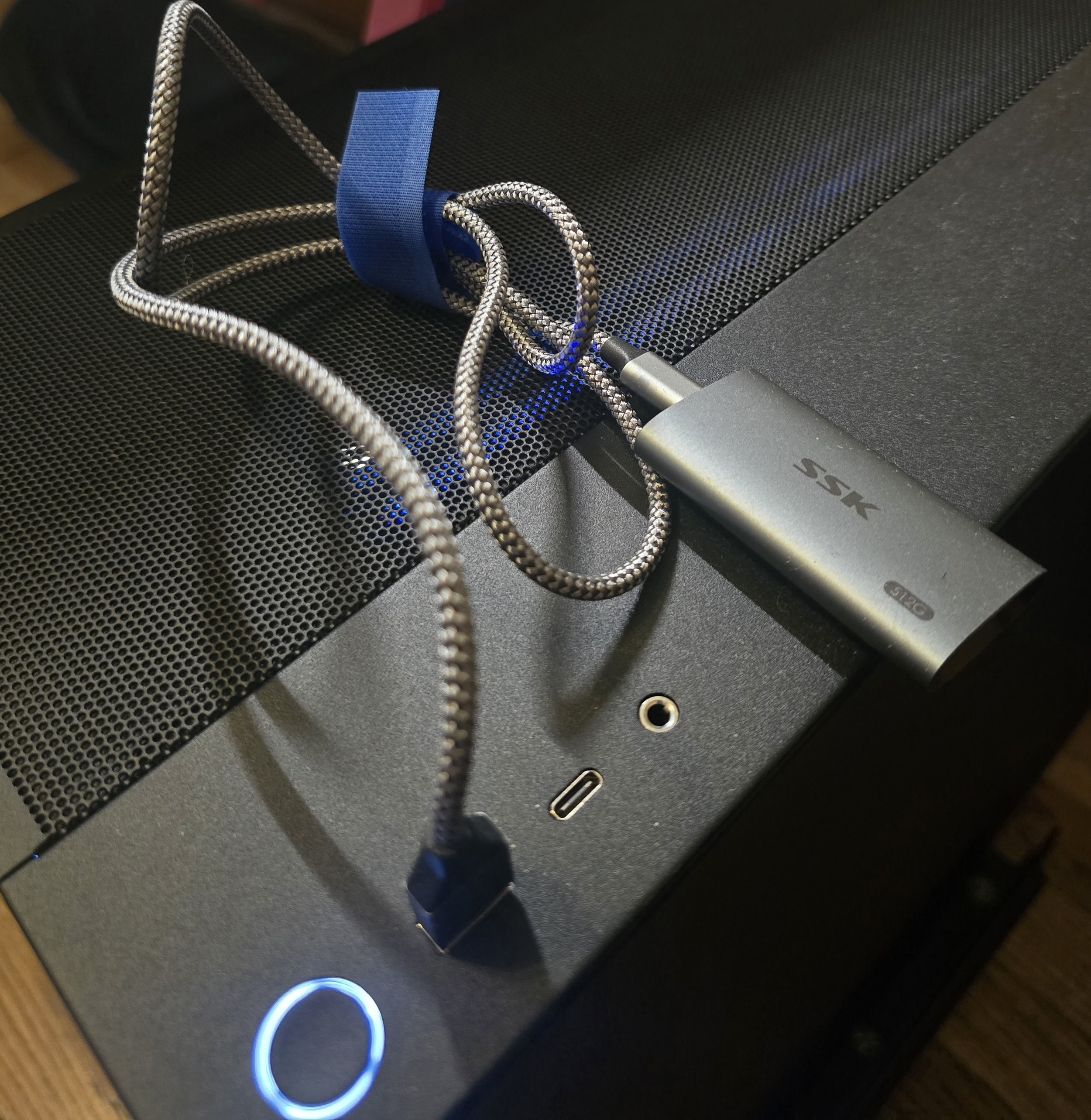
This is my personal SSK 2TB external SSD connected via USB-C port
Step Number One: Connect The Drive
That USB-C cable included with your newly purchased External SSD, connect it to your computer. It's worth noting that if your laptop only has USB-A ports, you may need to order a USB-C-to-USB-A adapter. Once connected, most modern operating systems are Plug-N-Play and immediately recognize the drive.
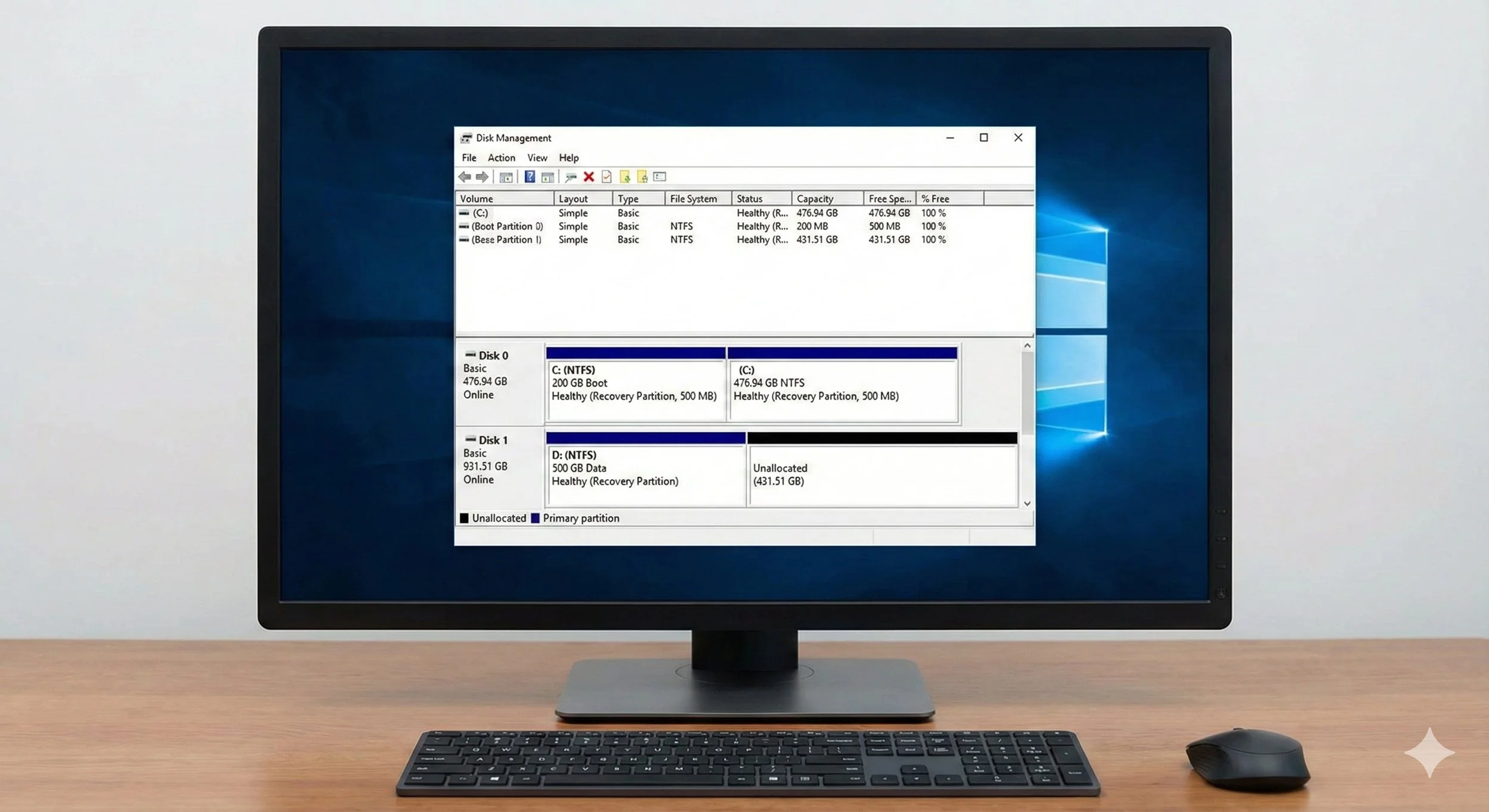
Courtesy of Gemini AI which I love, this is what Windows Disk Management looks like
Step Number Two: (If Needed) Initialize and Format The External SSD
In Windows, go to the Start Menu and type Disk Management; in macOS, use Disk Utility (in Applications> Utilities). Your brand-new drive may need to be initialized before use. From there, choose NFTS for Windows use only, and for macOS, choose exFAT for cross-platform (Windows, macOS) compatibility. Formatting drives will erase existing data, so proceed with this task only if the drive is new or has no stored data.
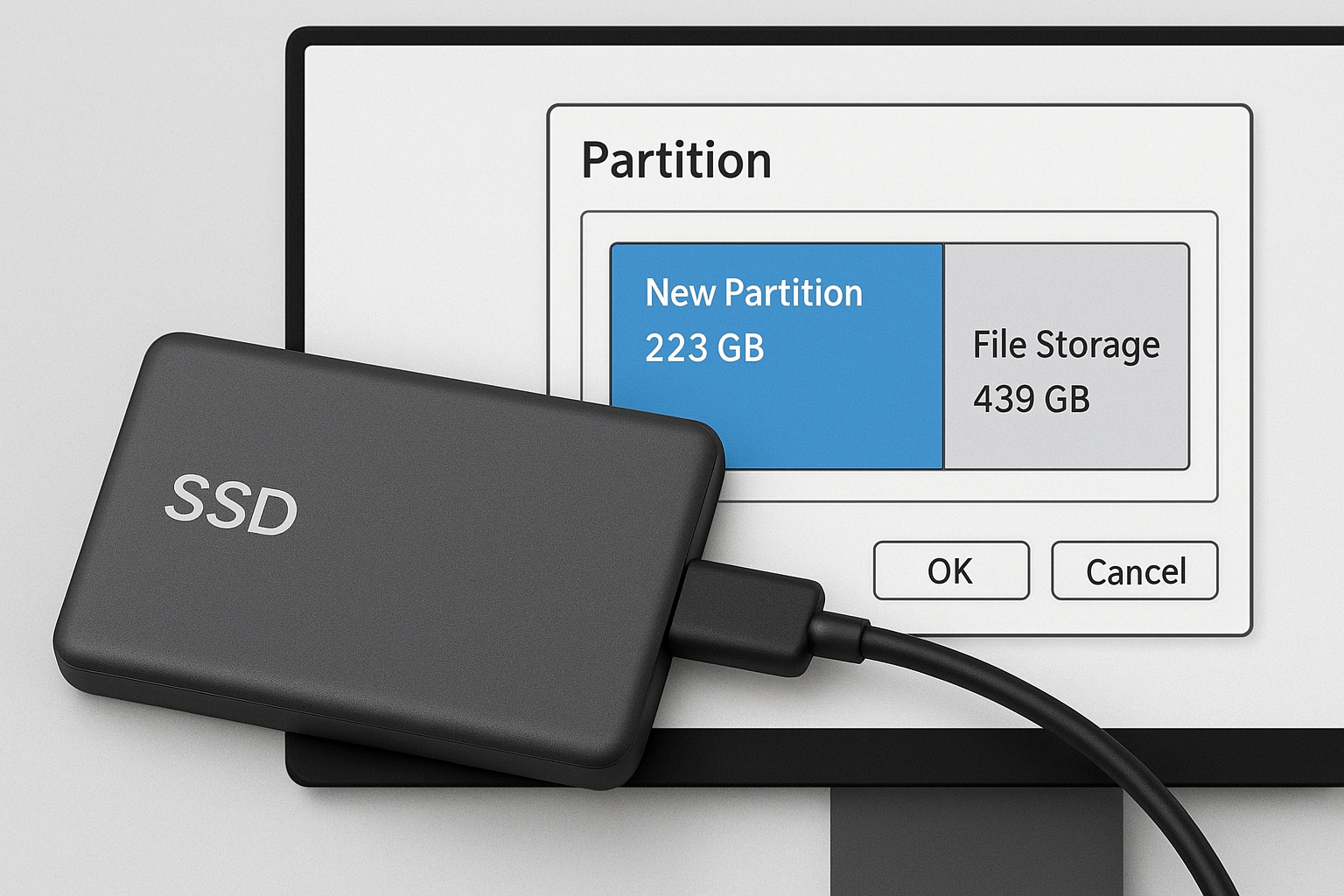
Step Number Three: Organize The Drive With Partitions as an Option
You can split the SSD into multiple partitions for different uses, such as one for backups and one for media. This option will help you organize files if you plan on storing various data.
Step Number For: Start Using Your SSD
Drag and drop files to your new external SSD just like you would do with any folder. The drive can be used for backups, video editing projects, or as a personal portable archive tool for personal documents you can access on the go. You'll be amazed at the transfer speeds and vast improvement in reliability compared to traditional external hard drives.
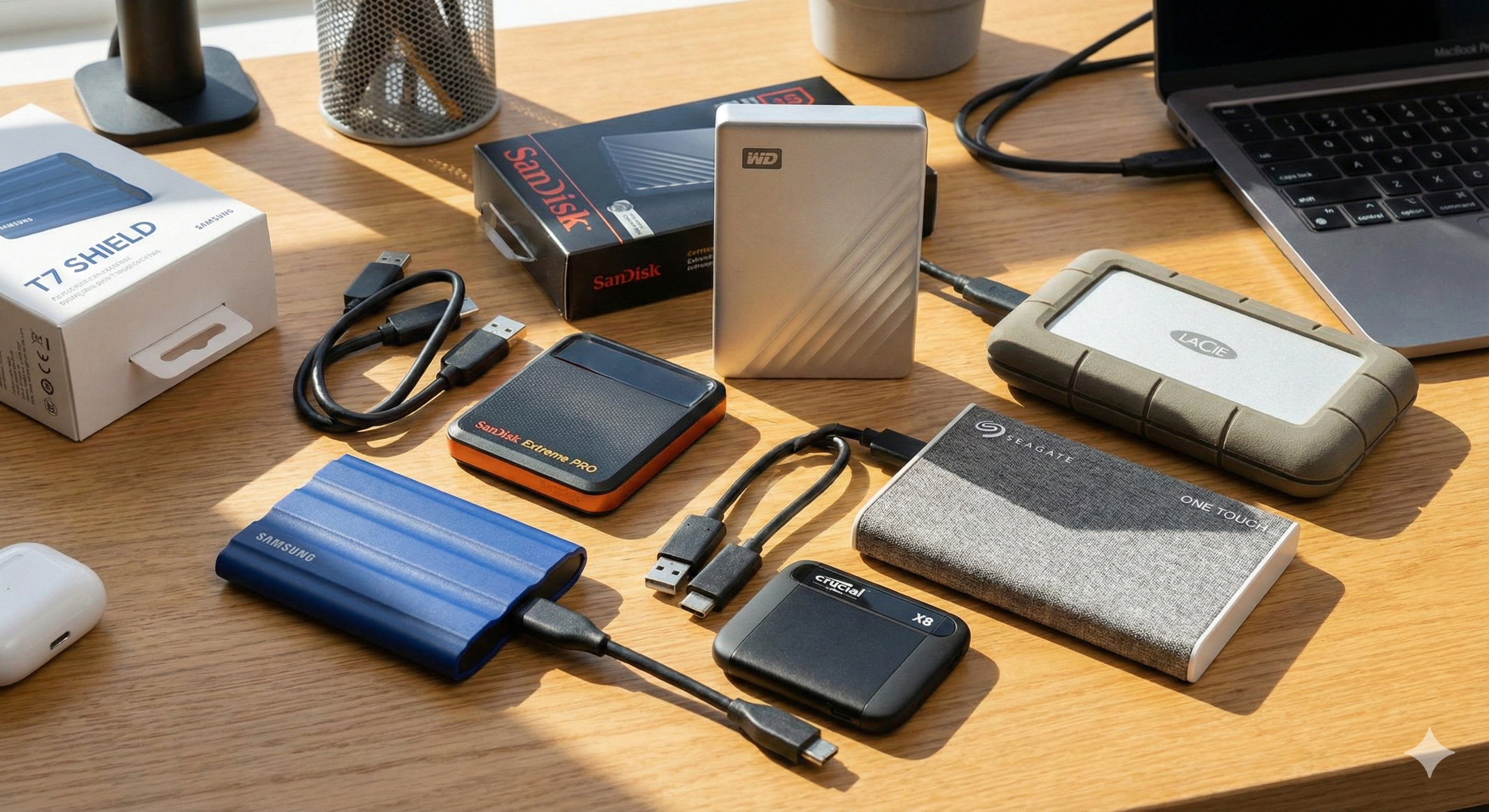
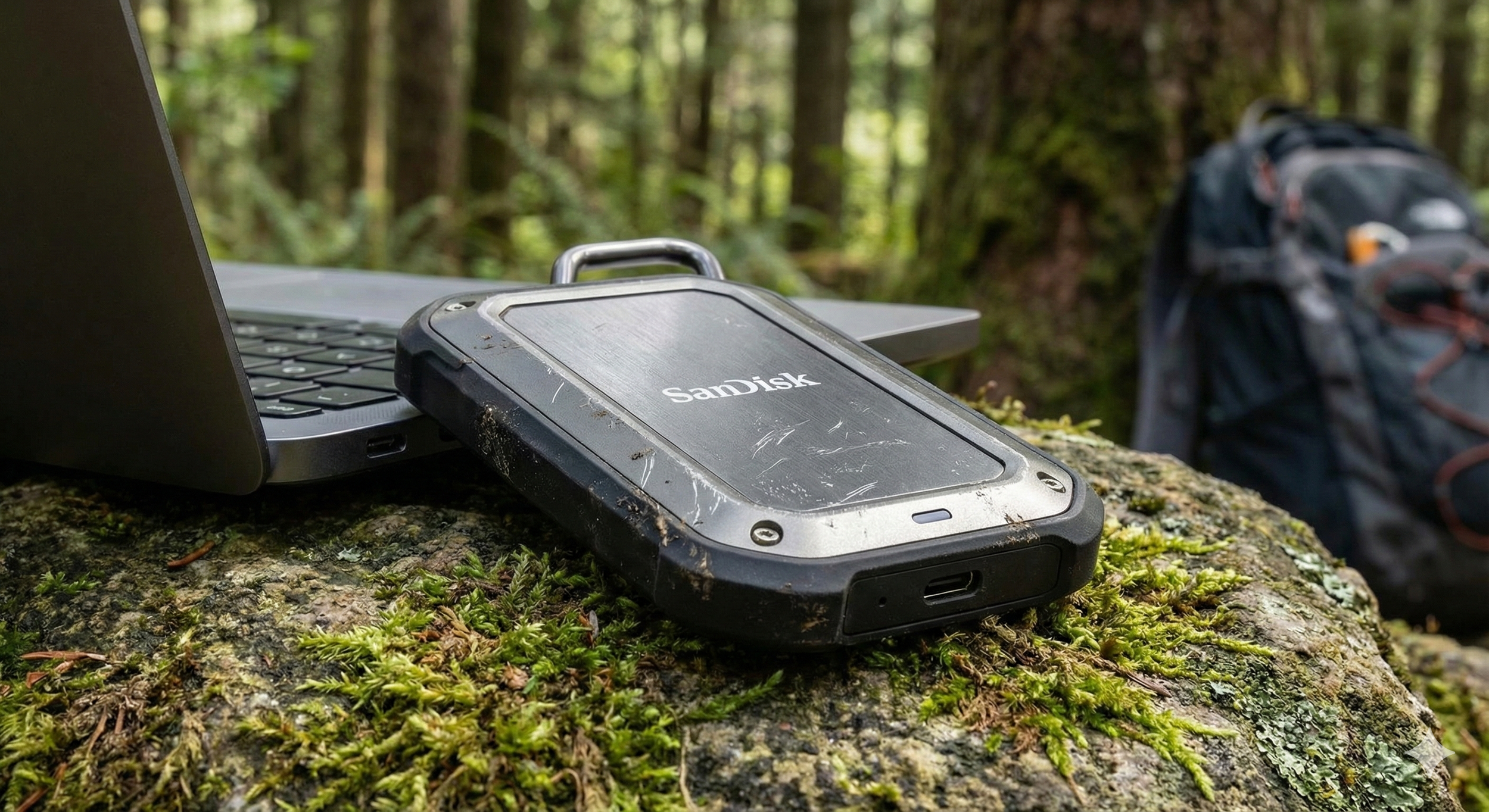
Varying brands of external SSD’s
You Should Keep This in Mind
Before unplugging your external SSD, be sure to eject it safely to prevent data corruption. Also, keep firmware and drivers updated if your drive manufacturer provides them. Even though SSDs are durable, you should avoid extreme temperatures or sudden physical shocks.
Here’s my list of recommended External SSDs
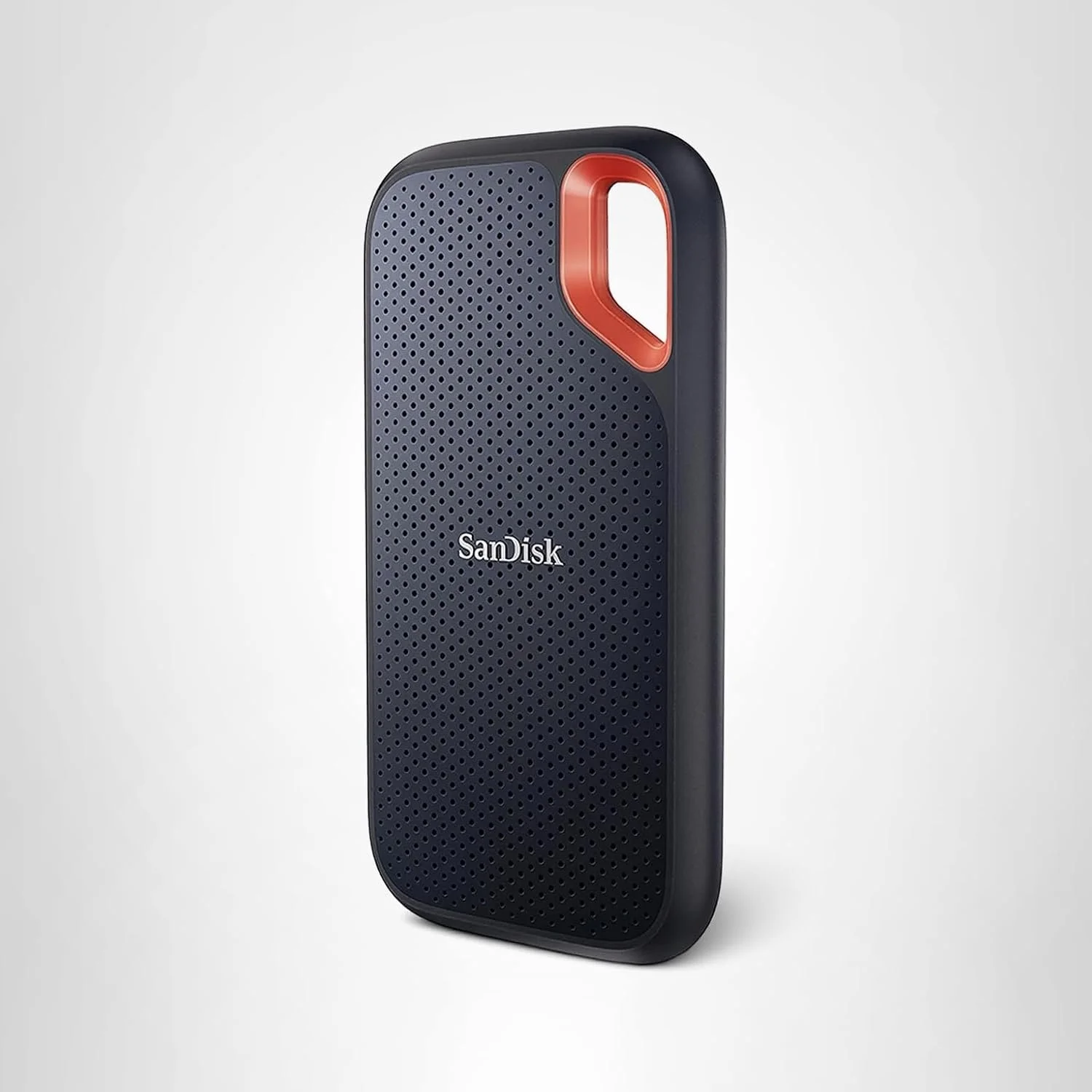
The ever-so-popular SanDisk 1TB Extreme Portable SSD has an IP65 rating. Price $109 Amazon
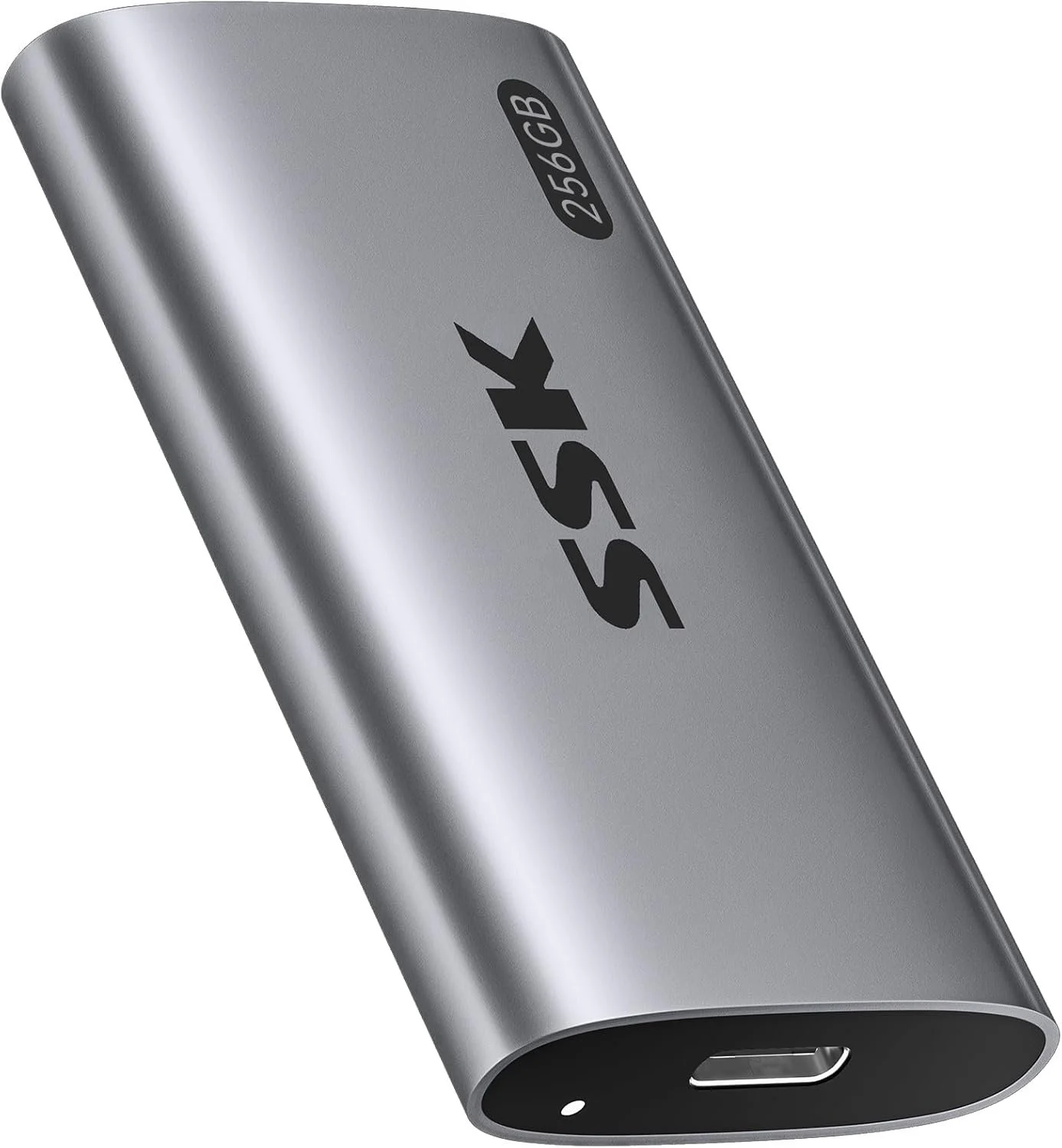
SSK 1TB SSD External Drive is the same drive you see posted in this article. It offers up to 550 MB/s read and write speeds—price: $84.99 on Amazon.
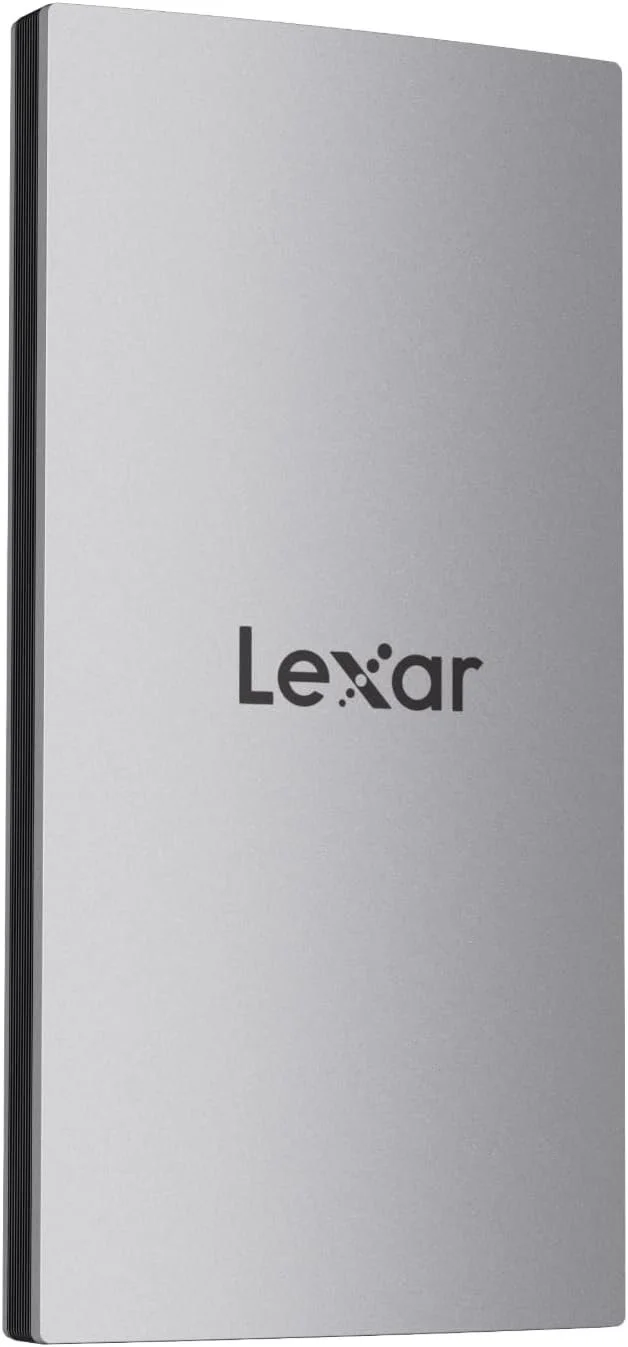
Finally, we have the Lexar ES3 1TB External SSD with blazing read and write speeds (1050 MB/s-1000 MB/s), priced at $89.99 on Amazon.
So In Summary...
Once you have plugged in your external SSD, don't forget to format it for your system if needed, and you're ready to go. With blazing speeds and portability, it's one of the easiest upgrades you can make to your digital devices.