What are The Telling Signs of a Failing RAM
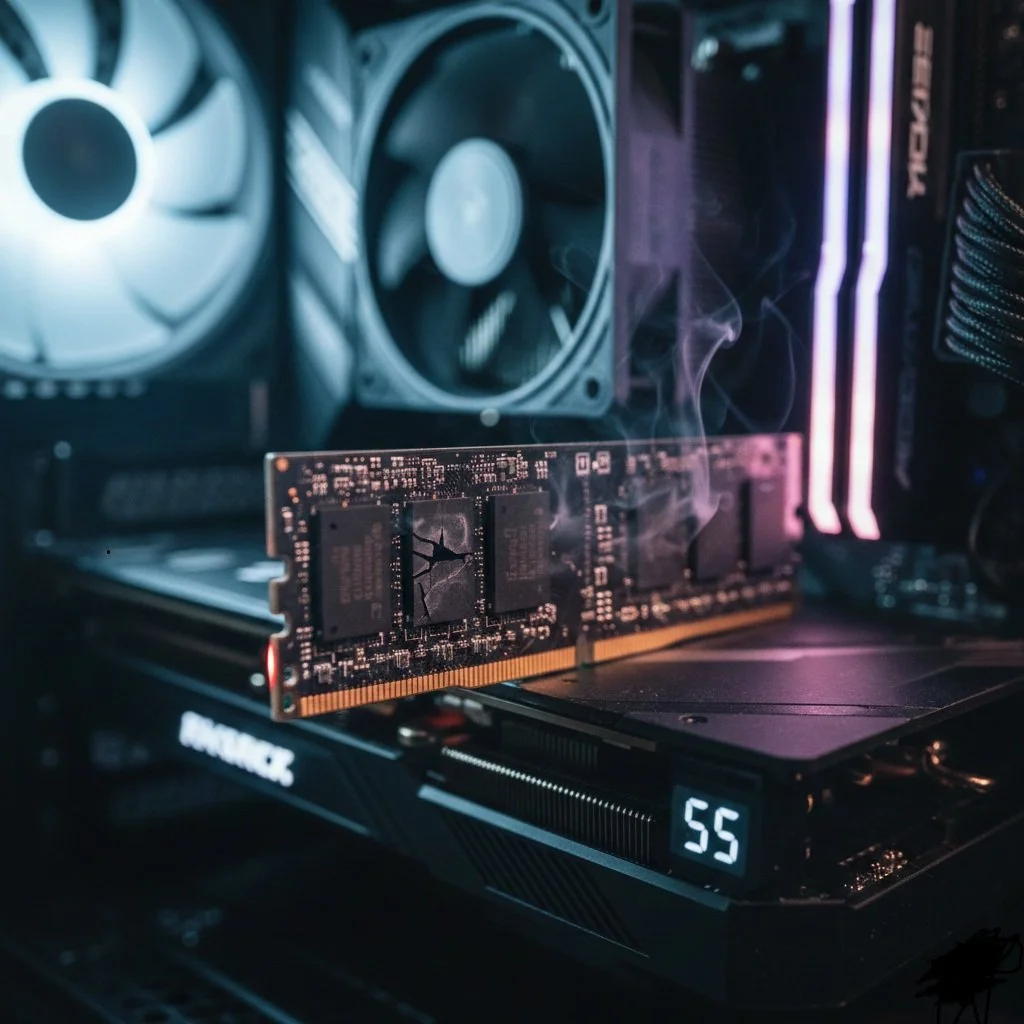
Random Access Memory (RAM) is where your system stores data for immediate access, enabling smooth computer operations. If RAM ever fails, your computer will start behaving erratically and unpredictably, and in some cases, it will disrupt the system's boot process. Unlike an HDD drive, you will begin to see visible signs, especially with a mechanical drive, before it eventually dies. With RAM, it usually fails silently. In this post, I'll show you the most common "telltale "signs that your computer's memory is headed for the grave.
Visible Sign Number One: The "Blue Screen of Death “( BSOD)
Be mindful of error codes that read MEMORY_MANAGEMENT or DATA_BUS_ERROR. These patterns on the screen occur specifically when you're doing something memory-intensive, for example, rendering video or opening 50 tabs in your Google web browser; it's a glaring red flag.
Visible Sign Number Two: Performance Diminishes Over Time
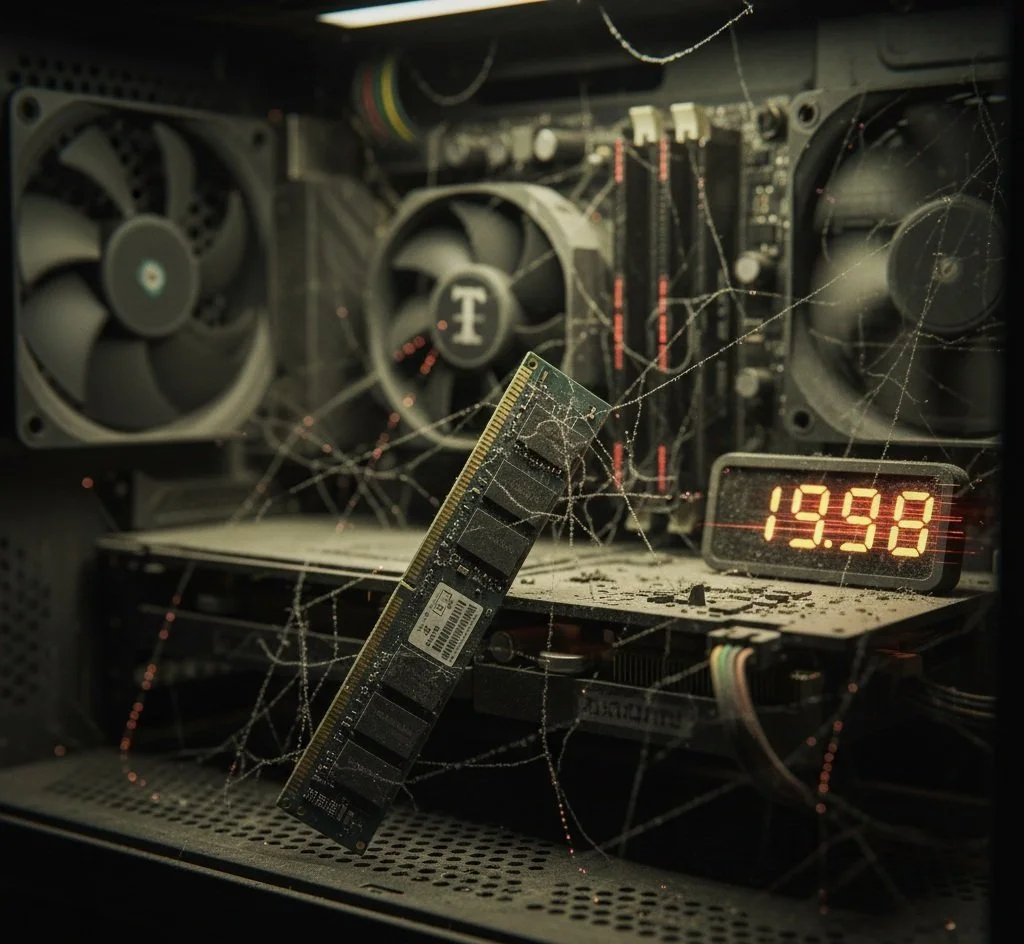
When you power on your computer, operations will start normally and fast. But over time, your system will slow to a crawl. This could be due to faulty RAM sectors; it can handle minimal tasks, but as your computer uses more memory, the system will hit "Dead zones." This causes the operating system to struggle mightily, leading to a barrage of slowdowns that only a restart can fix — temporarily.
Visible Sign Number Three: Random Reboots
If you noticed your computer restarting by itself without any warning or permission, it's a clear indicator of faulty hardware. A failed RAM module can cause the CPU to lose its place in a line of code, forcing a hard reset to regain its footing.
Visible Sign Number Four: Files are Becoming Corrupt
Out of all the symptoms I've listed so far, file corruption is the most dangerous. You save a document, but when you try to retrieve it later, it's unreadable. If RAM fails to properly hold the data before it is written to the storage drive, the entire file structure can be corrupted. If you notice desktop icons disappearing or files frequently becoming "broken," your RAM is likely malfunctioning.
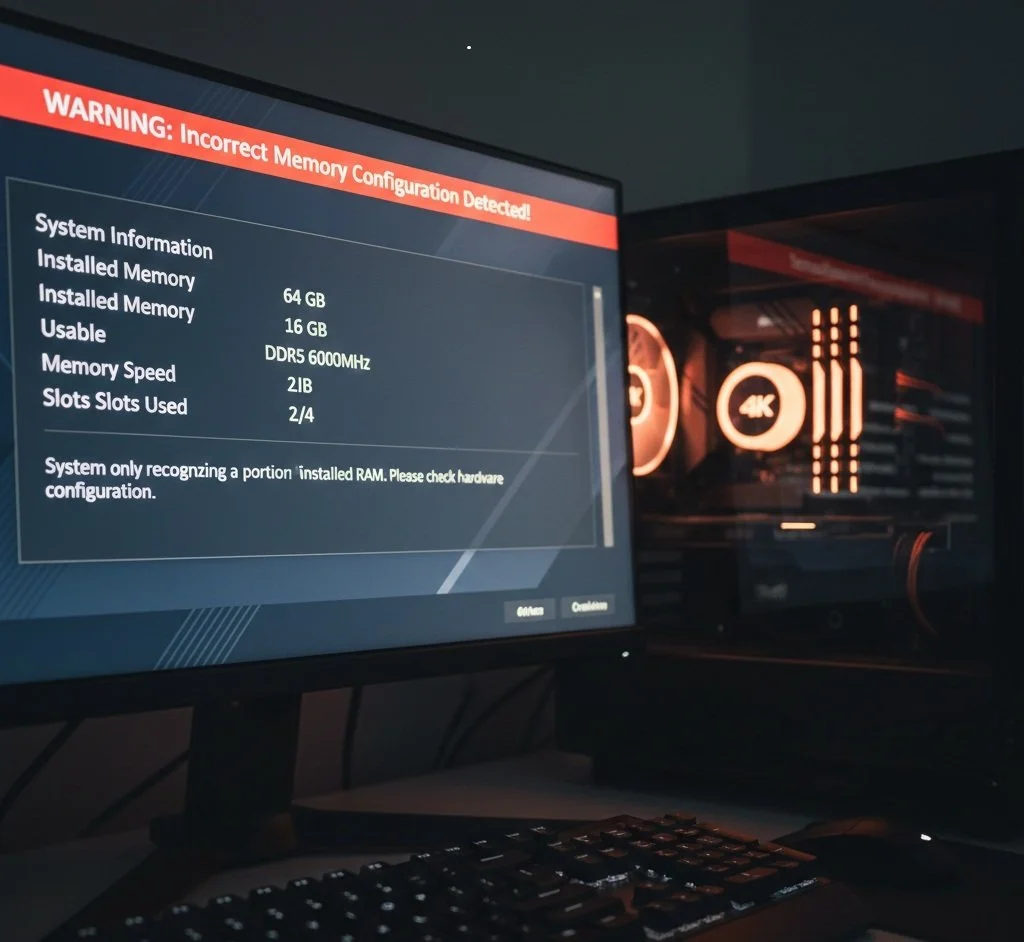
Visible Sign Number Five: Incorrect RAM Totals
Incorrect RAM totals are by far the easiest to diagnose. Let's say you installed 16GB of RAM, but your Windows or macOS reports you have only 8GB; it's likely one of your memory sticks has died, or the slot on the motherboard has failed.
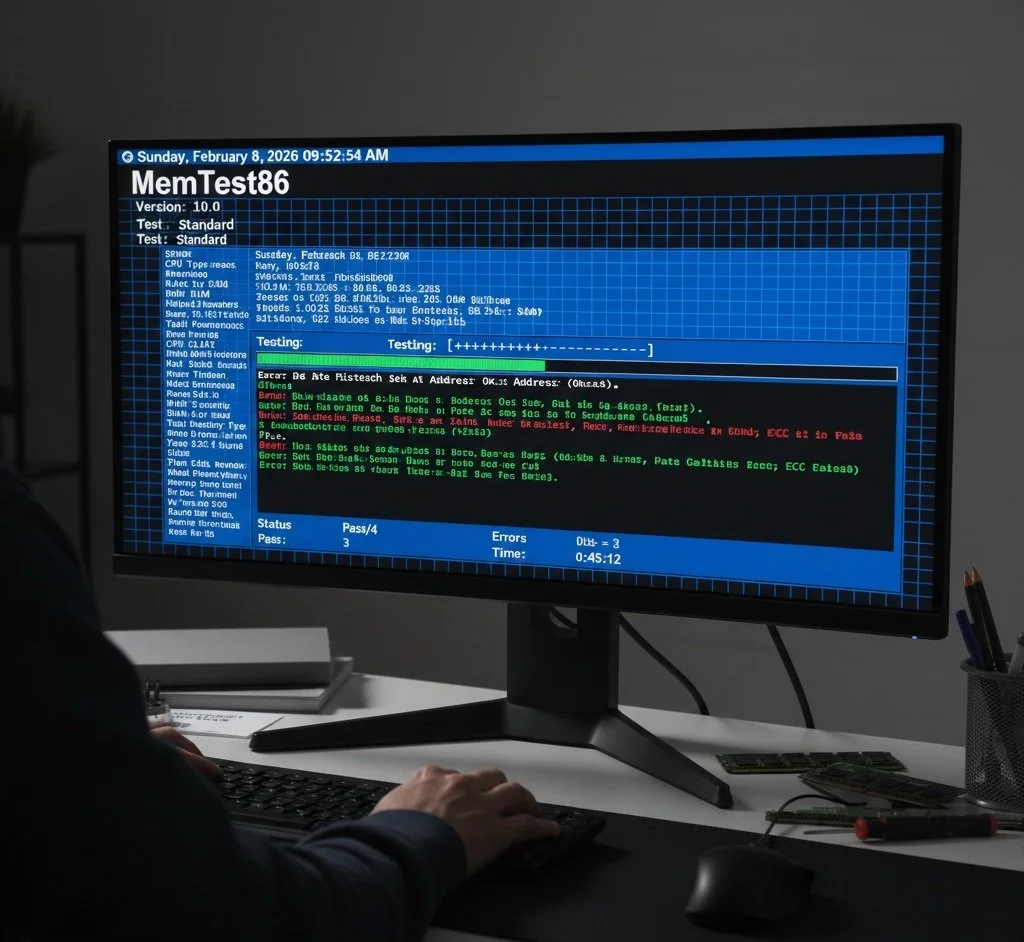
Here's How to Confirm Your Suspicions
Before you even think about purchasing new hardware (RAM), verify that you have an issue with RAM. Your Windows operating system has a built-in tool that checks your RAM for errors. Then there is the third-party alternative, MemTest86, an industry-standard tool used by many PC enthusiasts. The software is very technical, so do your research before using it. MemTest86 does a thorough job at locating deep-seated errors.
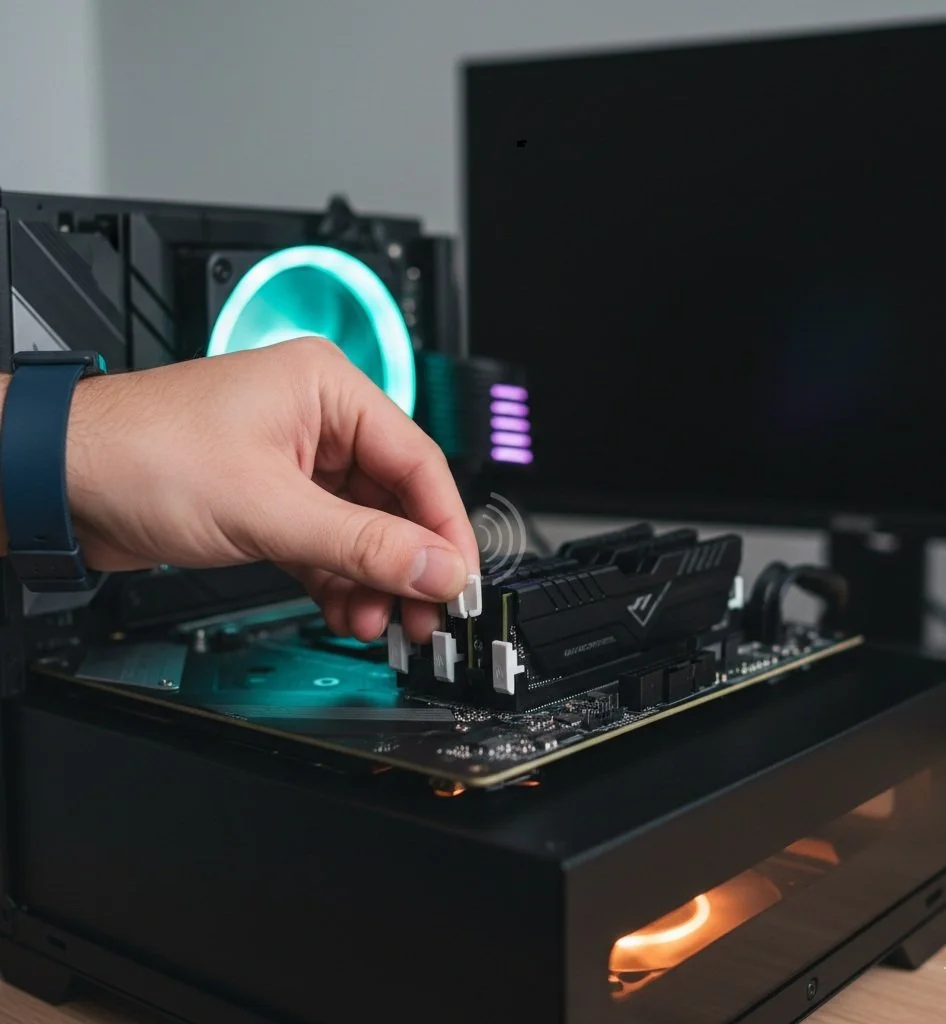
Conclusion: The Quick Tip
Sometimes the RAM isn't broken; it's just unseated. Before replacing it, open your case, take the RAM out, and firmly click it back in place. You would be surprised how a loose, unseated RAM is the main culprit. When you're reseating, don't push until it stops. You want to feel and hear the locking tabs snap into the notches on the side of the RAM. Many modern motherboards have only one side of the slot with a moving clip, so be extra careful to ensure the "fixed" side is fully seated before snapping the clip side shut.
While RAM failures can feel like a ghost in the PC—causing everything from “blue screens” to scrambled files—they are among the most straightforward hardware issues to diagnose. If your PC begins to stutter, reboots spontaneously, or fails basic MenTest86 tests, the evidence is usually clear.