
Let's Get Right To It: How to Properly Install an NVMe SSD
To learn how to properly install an NVMe M.2 SSD, follow the instructions I put together in this post. This will ensure optimal thermal performance and prevent damage to the connector pins or the drive.
1: Prep The System
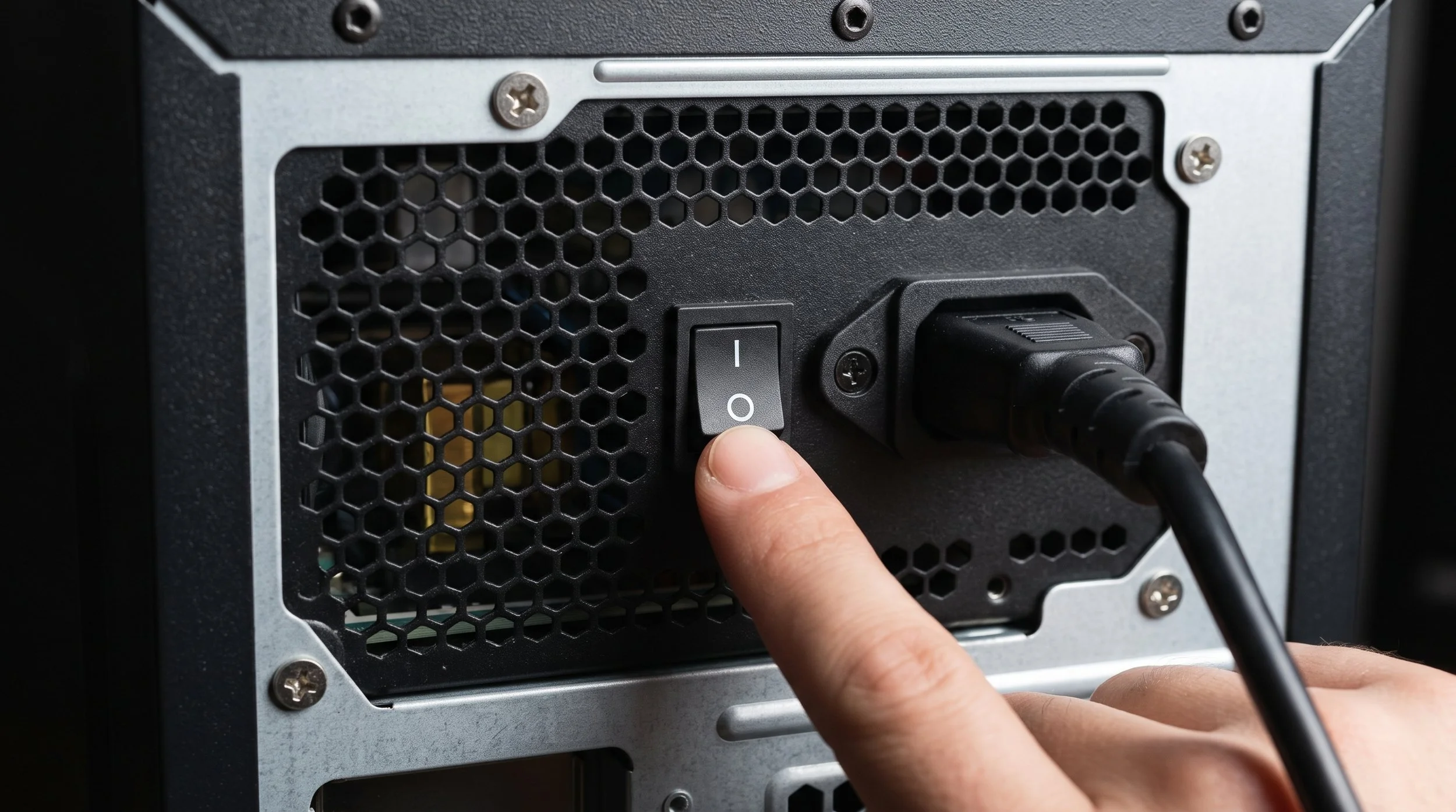
Power down the PC, flip the power supply switch to OFF (O), then unplug the AC power cord. Press the chassis power button for 5 seconds to discharge residual charge in the capacitors. Ground yourself by touching bare metal on the PC case or wear an ESD wrist strap.
2: Seek the Optimal M.2 Slot
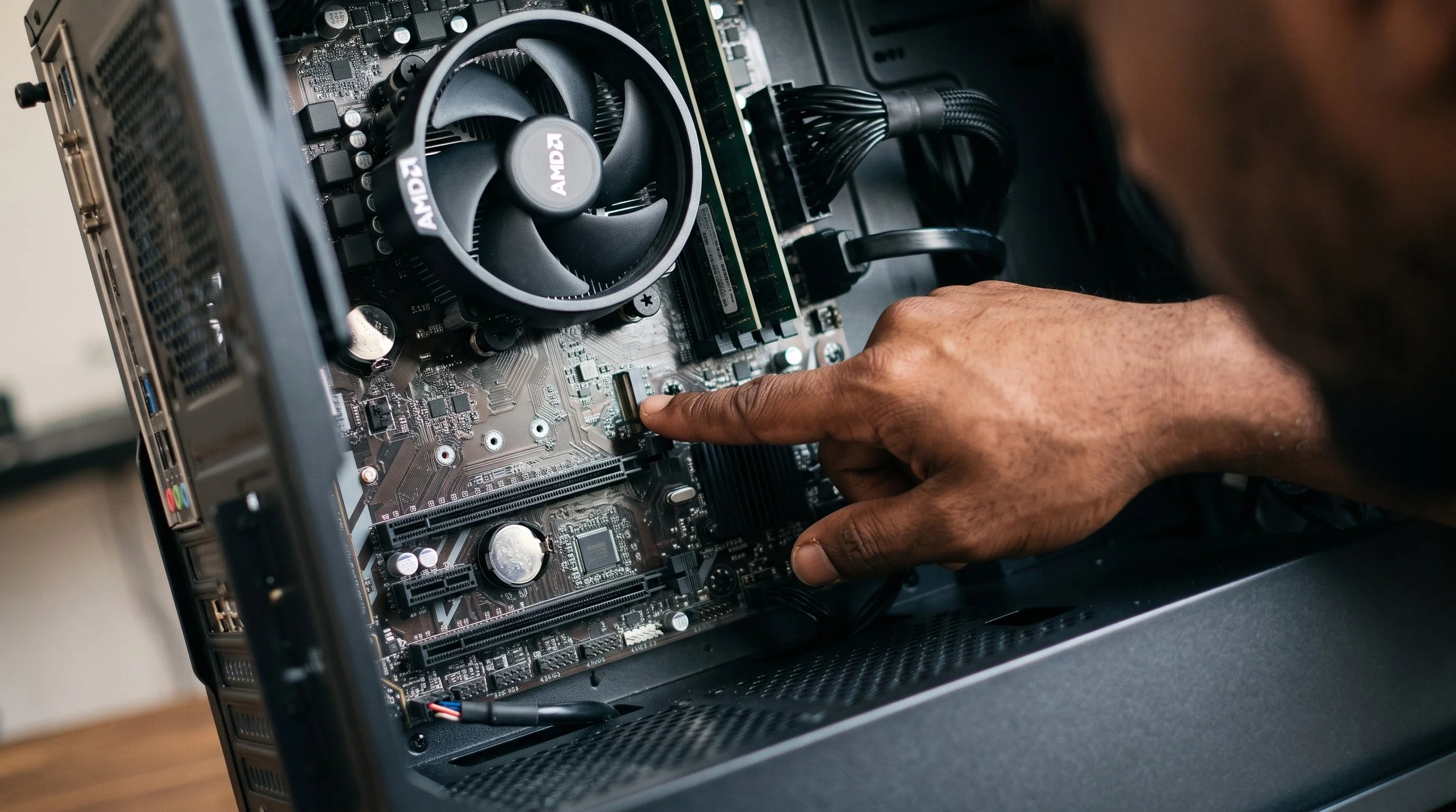
Identify the primary M.2 slot on the motherboard (usually the topmost slot, closest to the CPU socket). This slot connects directly to the CPU's dedicated PCIe lanes, delivering the lowest latency and highest throughput. Remove any pre-installed metal motherboard heatsink using your handy Phillip #1 screwdriver.
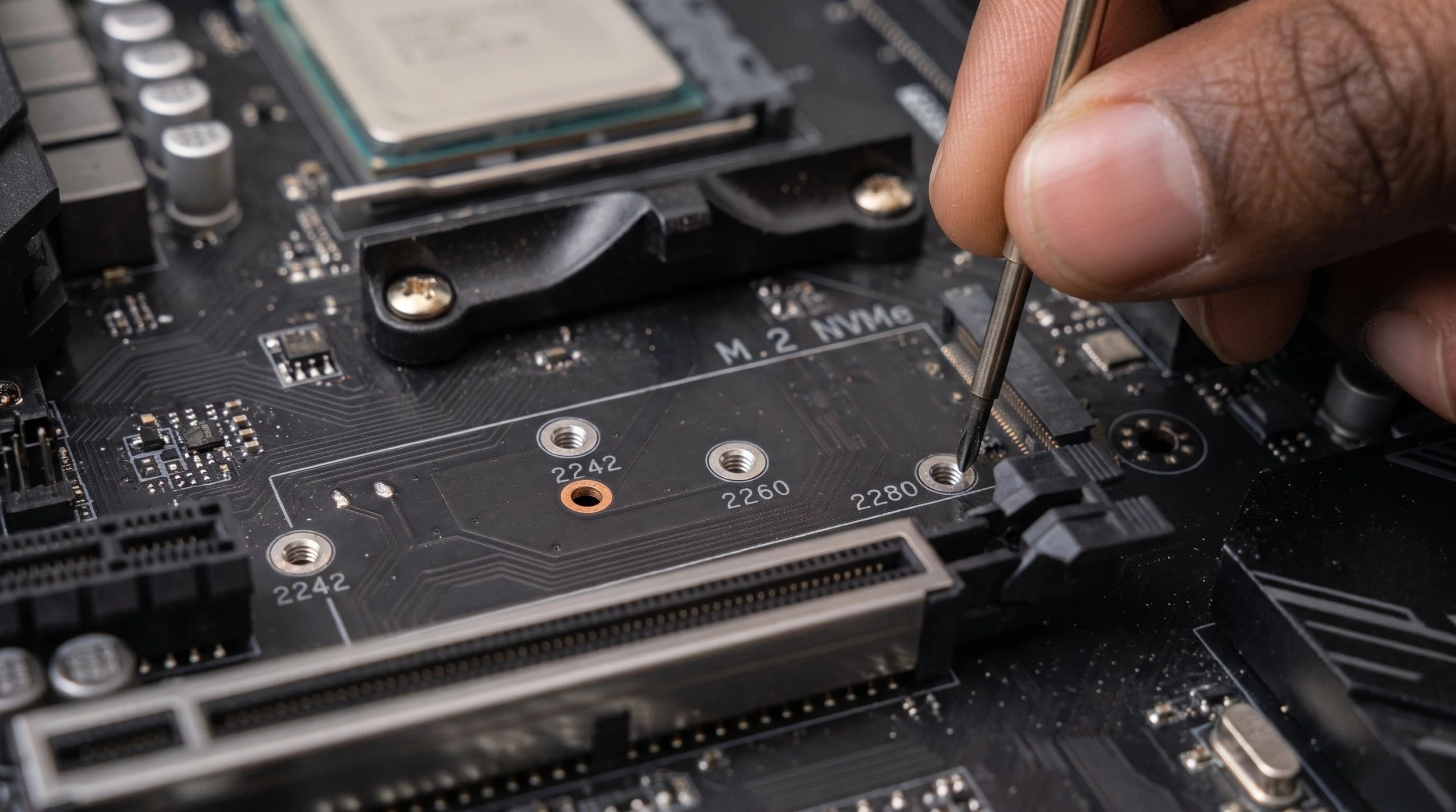
3: Check Standoff Alignment
Inspect the standoff screw position. Most standard NVMe drives use the 2280 form factor (22mm wide, 80mm long). If the brass standoff is installed in the 2110 or 2260 hole, move it to the 2280 position. The newer motherboards use tool-free plastic EZ-latches instead of screws.
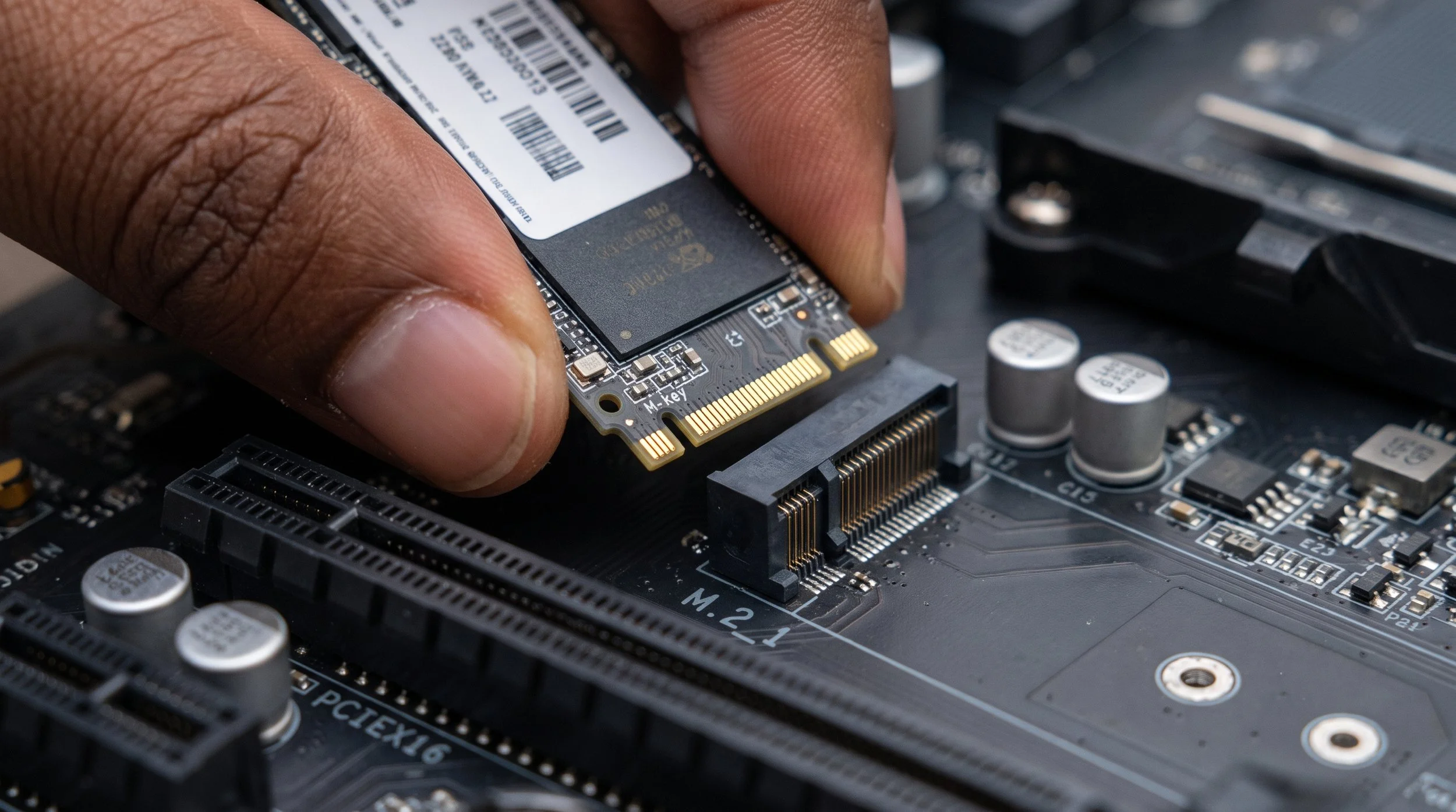
4: Seat the Drive at an Angle
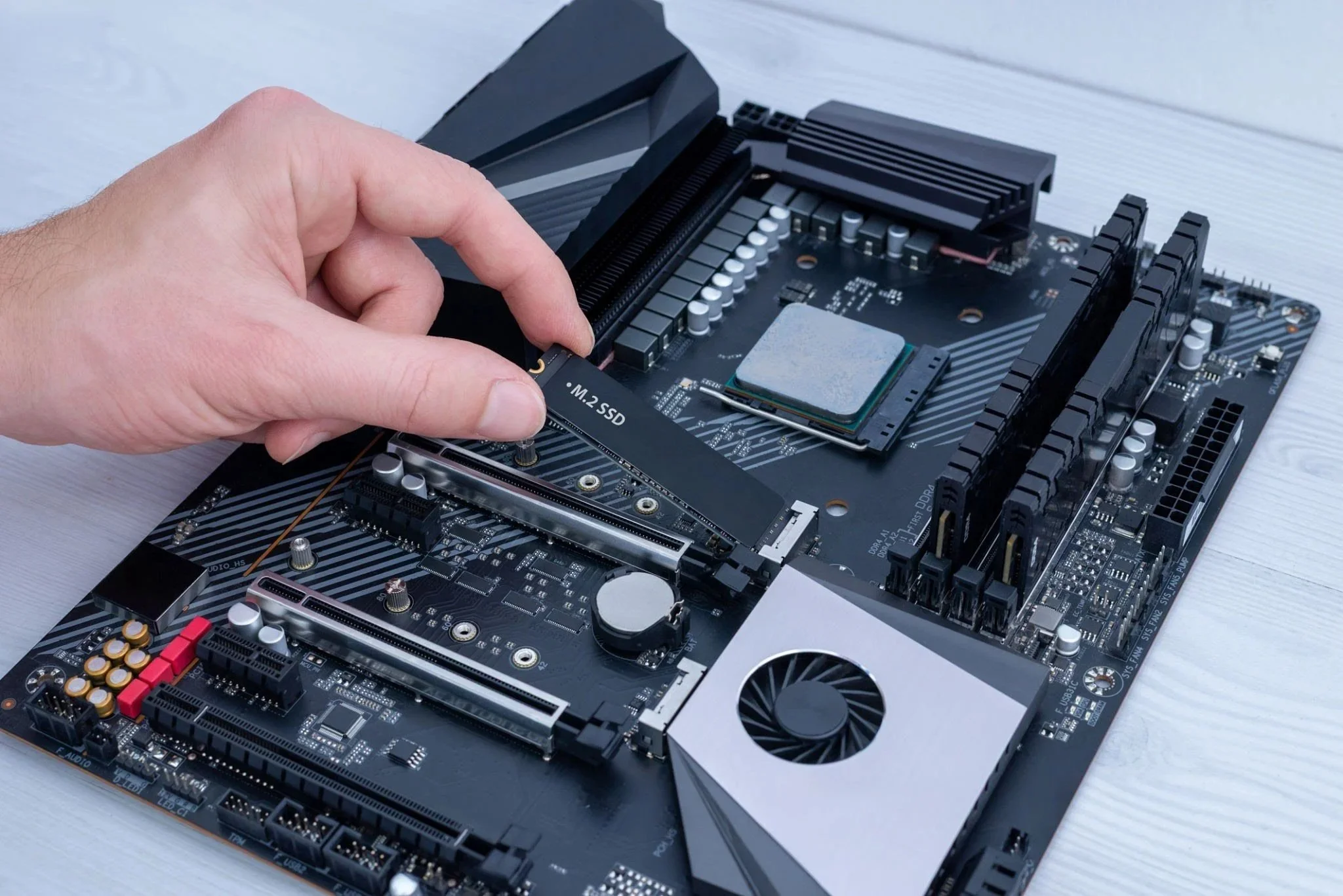
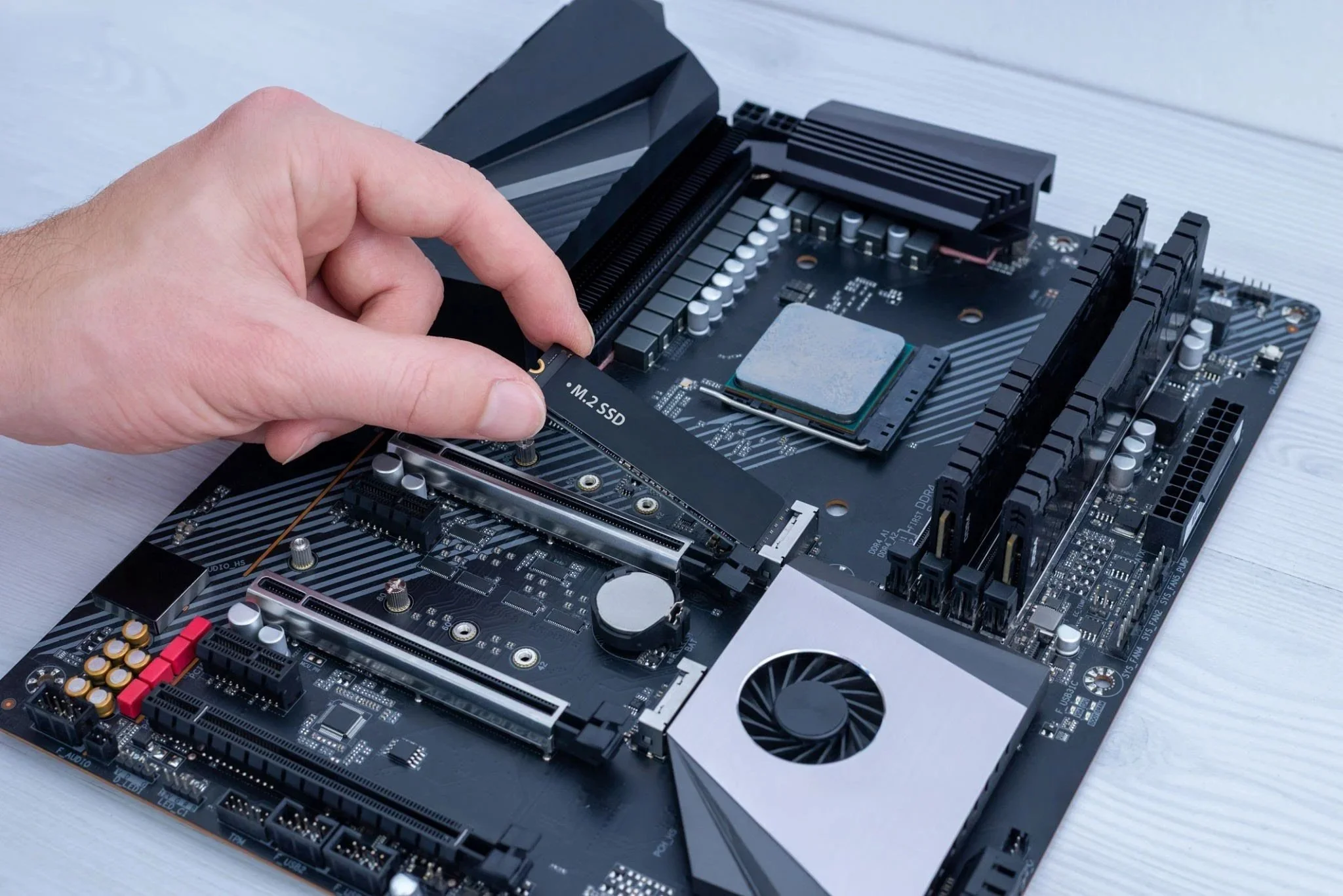
Align the storage drive's notch (the M-key) with the ridge in the M.2 slot. Hold the drive at about a 30-degree angle and slide the gold contacts firmly into the slot until it seats fully. The drive will naturally stay tilted up when properly engaged.

5: Secure the Drive
Carefully press the elevated end of the SSD down against the standoff or latch. Screw the mount by fastening the flat-head M.2 screw until it is flush. Do not overtighten; it can crack the PCB. The tool-free latch requires you to turn the plastic latch until it clicks over the PCB notch
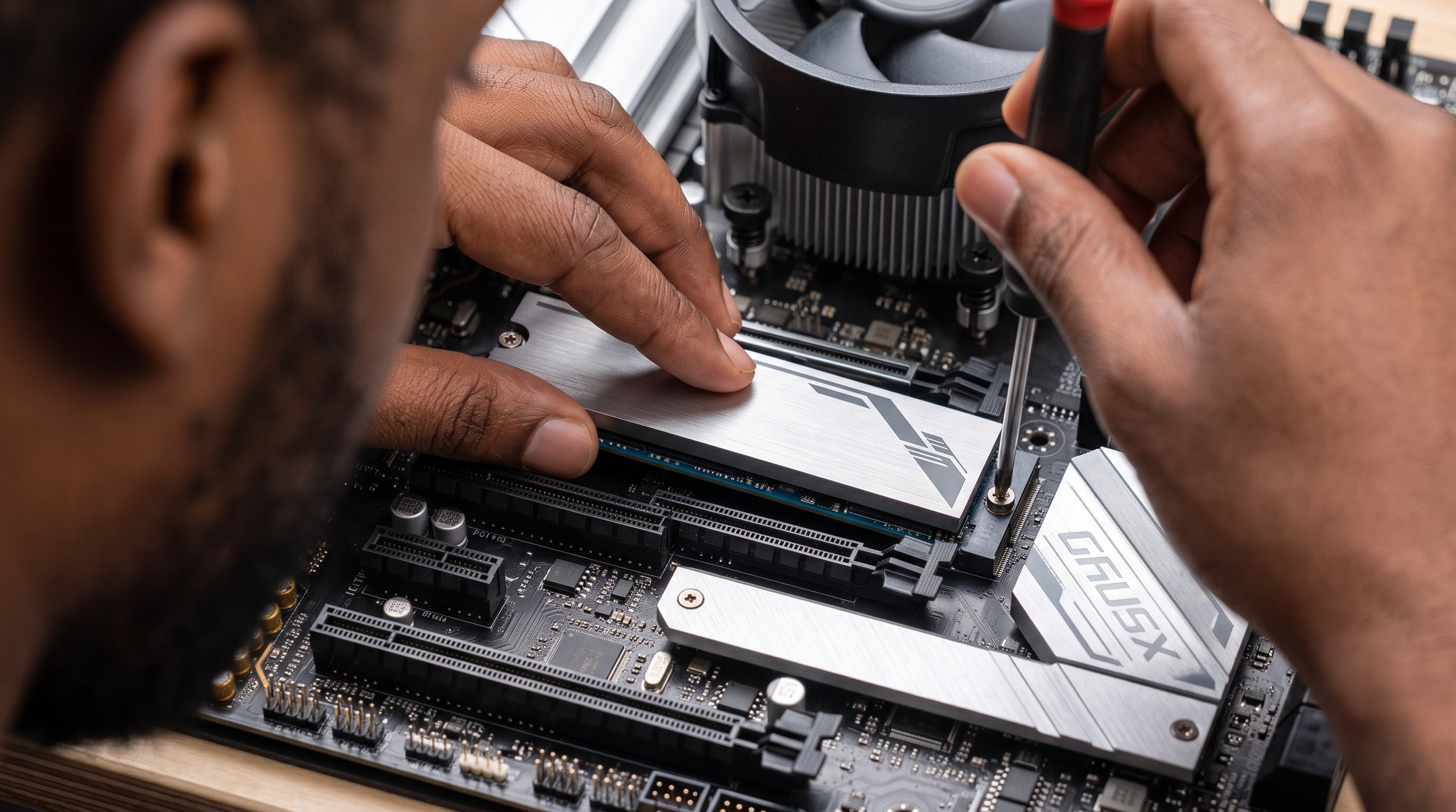
6: Reinstall the Heatsink
(Never forget the protective film) Peel the plastic film off the blue or gray thermal pad underneath the motherboard heatsink. If you forget to remove the film, it can cause severe thermal throttling during heavy read/write loads. Reattach the heatsink over the SSD and evenly tighten its mounting screws.
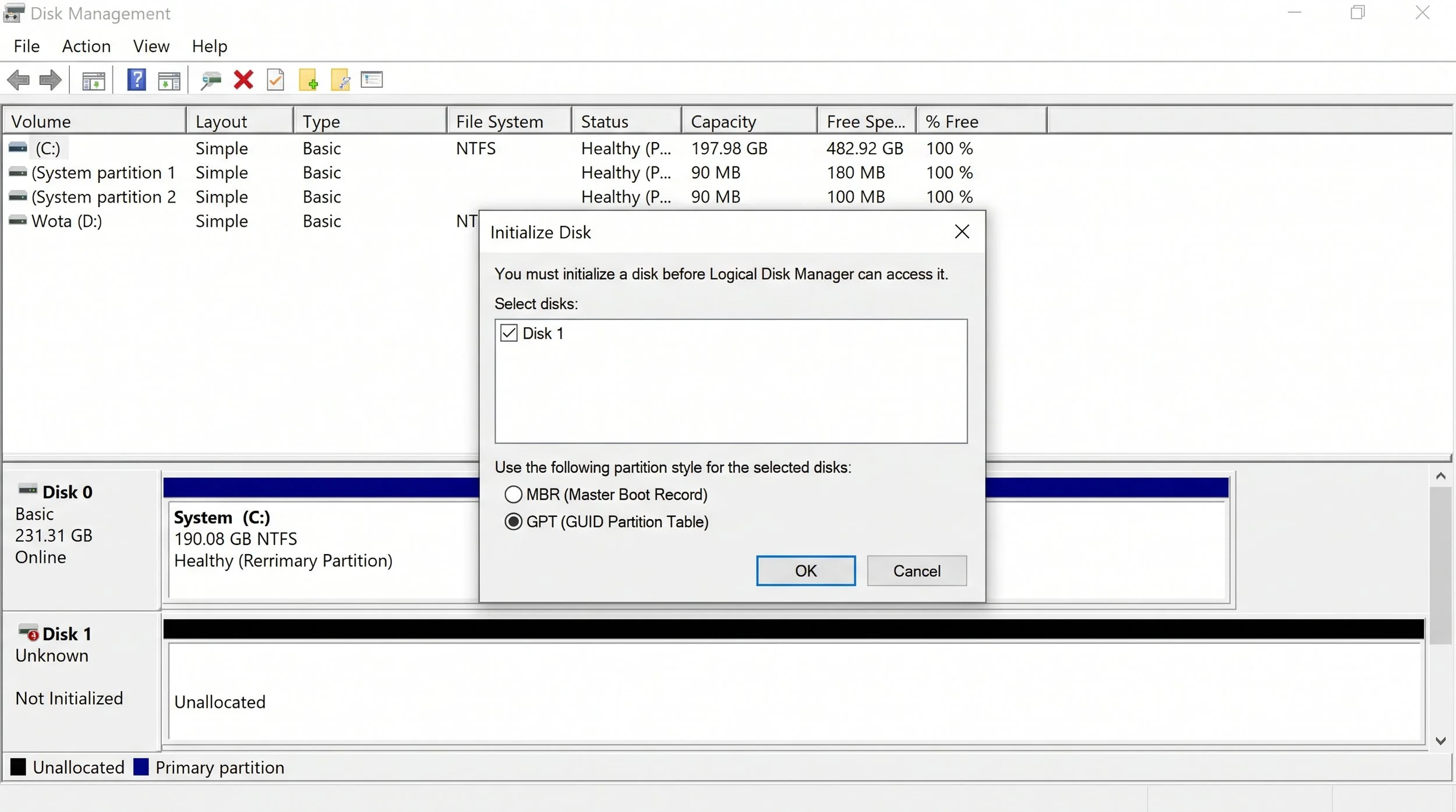
7: Install and Initialize Windows
Boot into the BIOS/UEFI to verify the drive appears under the NVMe configuration. Boot into Windows, right-click Start, and select Disk Management. An "Initialize Disk" prompt will appear; select GPT (GUID Partition Table), right-click the unallocated space, and choose New Simple Volume to assign a drive letter and format it as NTFS.
INSTALLATION COMPLETE. Good luck with your new NVMe M.2 SSD