How to get rid of bloatware from your New Windows 11 PC
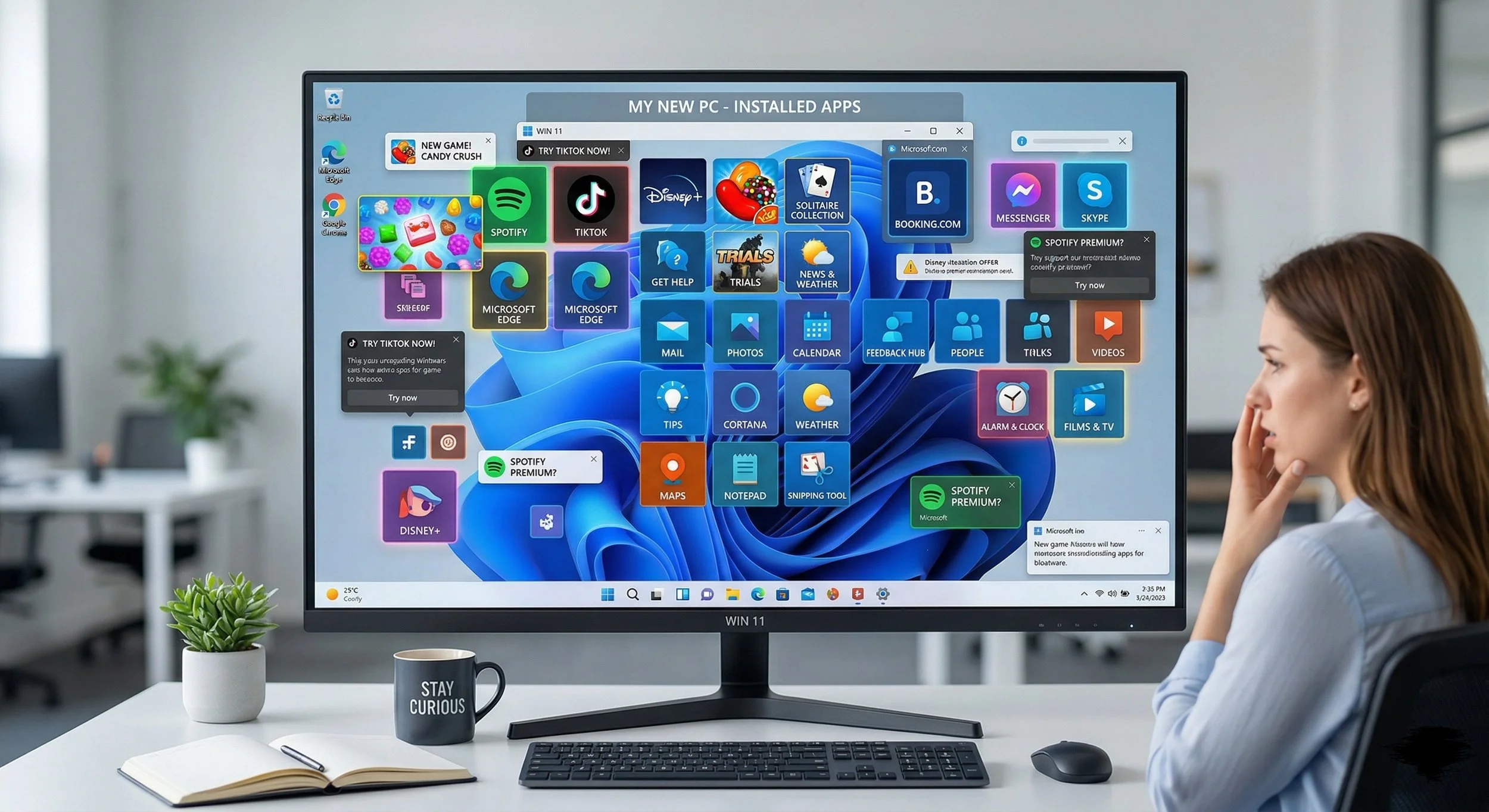
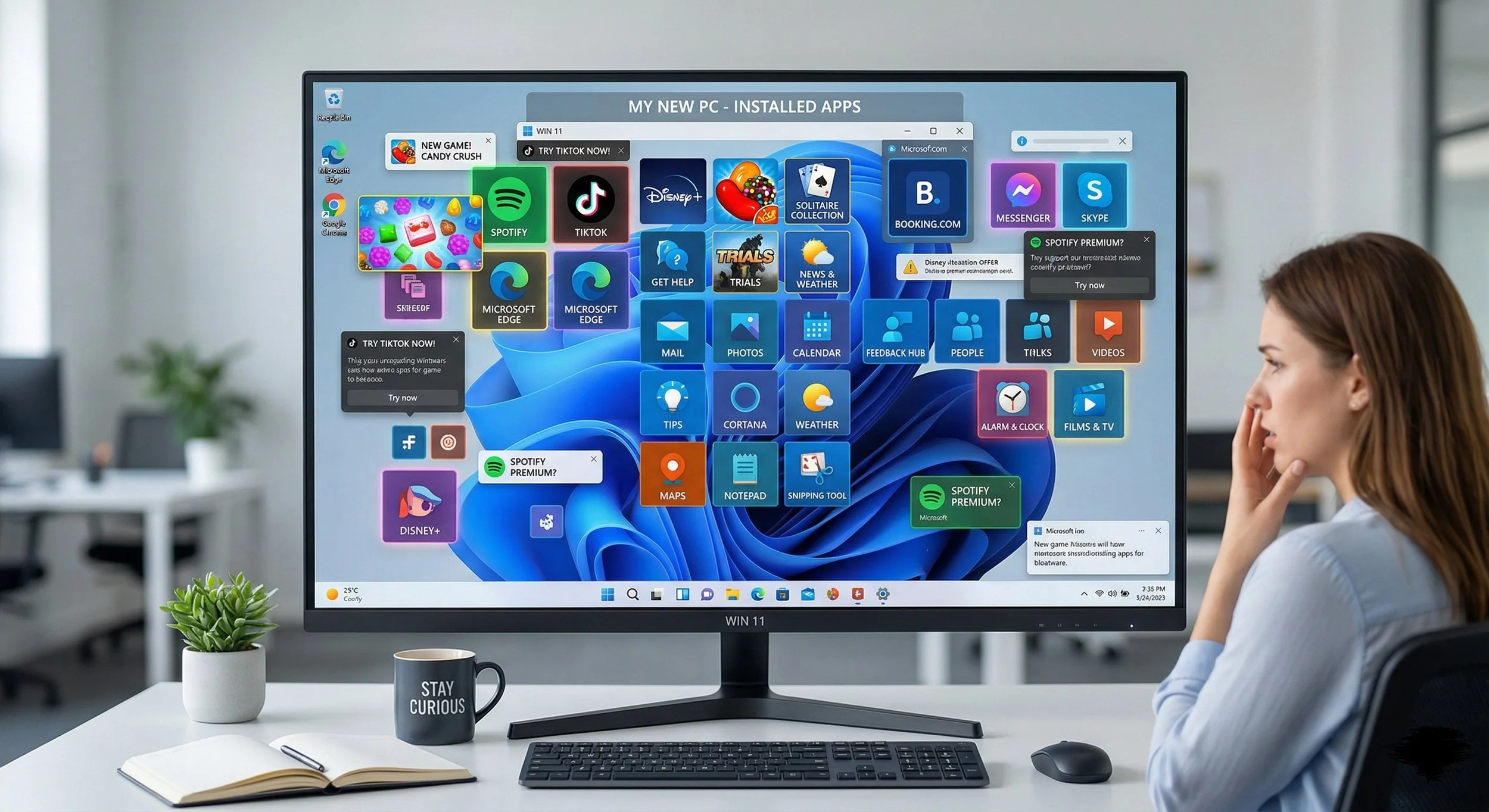
Congratulations, you just purchased a brand new PC. There's nothing more empowering than unboxing a newly acquired system. Once out of the box, you power on and boot up your brand-new desktop or laptop, only to find a bunch of pre-installed trialware, social media apps, and games listed on your display. Ladies and gentlemen, what you're looking at is the dreaded pre-installed bloatware you’ll find in most branded PC's. That unwanted software you're unlikely to use is taking up storage space and draining your computer's resources. But fear not, there is a solution for this issue. I'm going to show you how to easily remove that disgusting Windows 11 bloatware so you can enjoy your new system. Follow along.
Play it Safe, Manually Sweep your System.
If you’re not familiar with the heavy-duty third-party tools, play it safe and go the route of Windows 11's built-in Uninstaller. This is a simple and safe way to remove most pre-installed apps, such as McAfee antivirus, Candy Crush, and streaming apps (Disney+, Netflix), from your system.
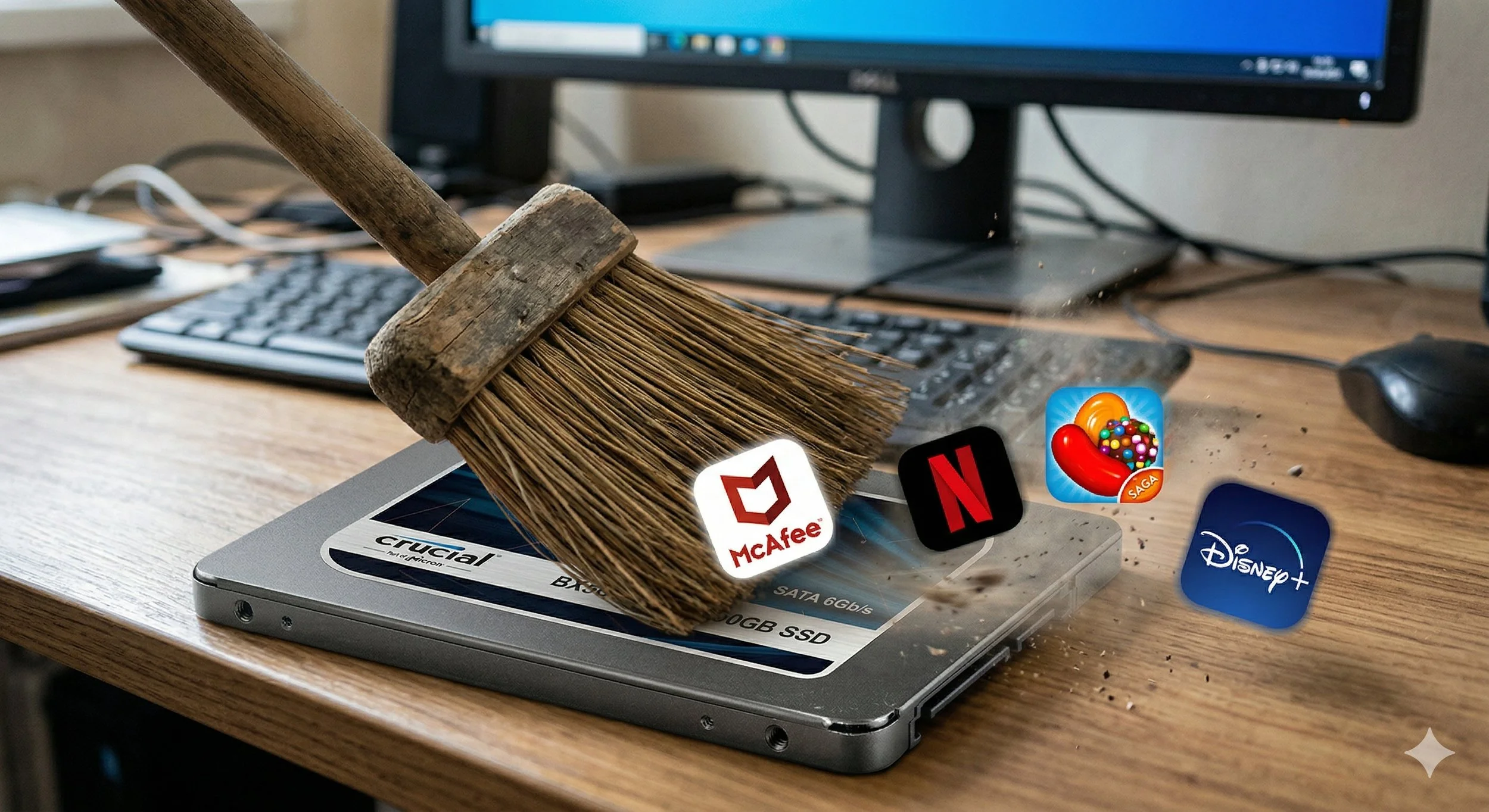
Right-click the Start Menu, go to Settings, then Apps > Installed Apps. Scroll through the list of apps. If you recognize any trialware apps, click the three dots (...) next to the app, then select Uninstall—a notable tip. If "install * is grayed out, it means this is a system-level app that requires a forced removal.
Stubborn Removal needs the PowerShell Method.
Some apps, like the Xbox Game Bar or Mail, don't always have an uninstall button. You can use a forced method to eradicate that unwanted software by using Windows PowerShell. Right-click the Start button and select Terminal (Admin). To remove a specific app, you need to use a command line. For example, it should look like this: Get-AppxPackage Disney+ Remove-AppxPackage.
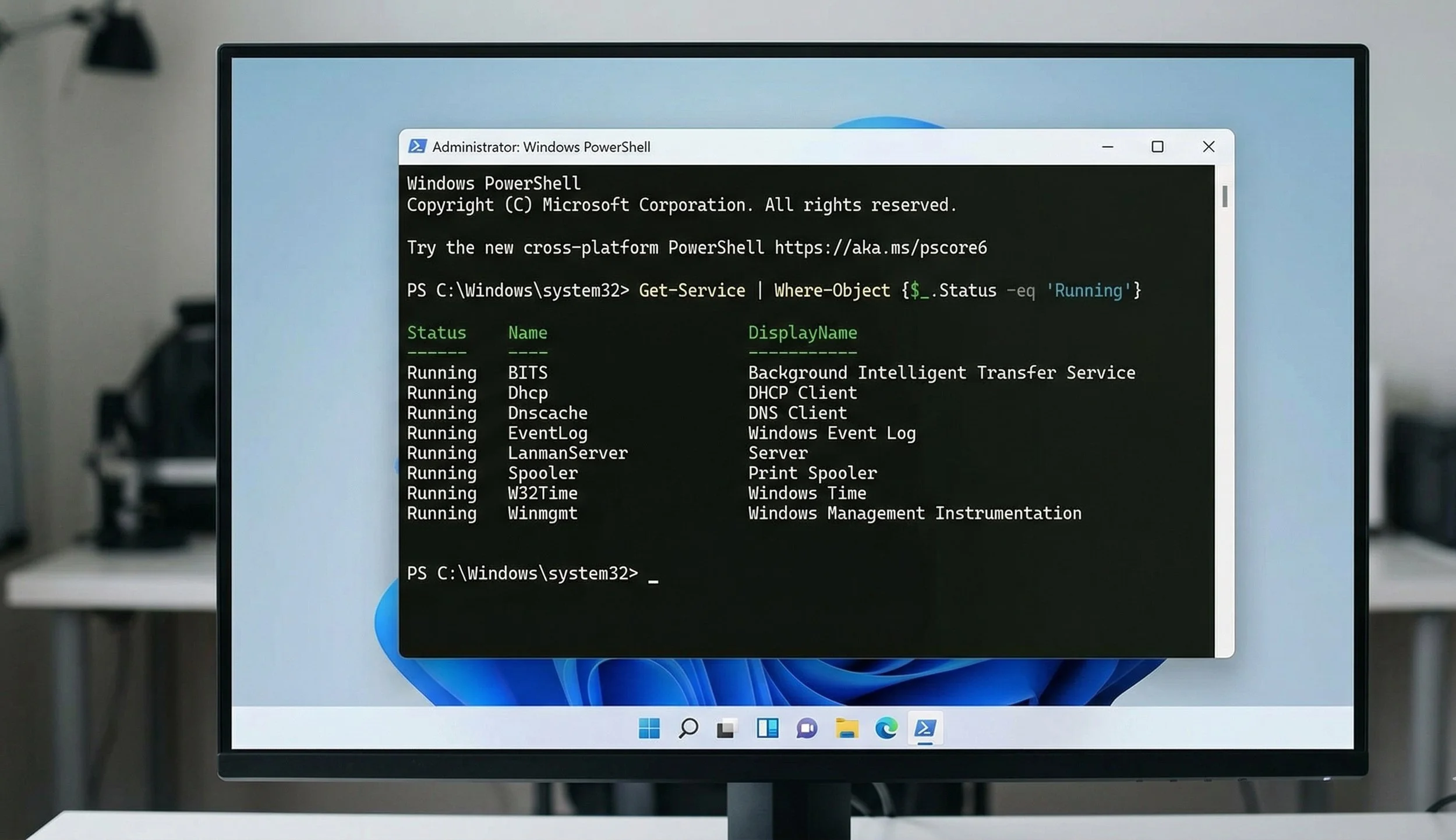
Be mindful of removing core system apps, as they can sometimes cause stability issues with your Windows operating system. Using this method to uninstall core system apps should usually be left up to seasoned Windows users. So if you aren't sure what to do, don't use this method. Do your diligent research before using a PowerShell command. There are tons of videos on YouTube that will guide you on how to properly use PowerShell.
The Third-Party Tools
For me, the best way to remove any application from the system that includes trialware is to use third-party tools; I’ve recommended three in particular. Firstly, we have the Chris Titus Tech removal tool, widely considered the gold standard among PC enthusiasts because it does not require you to download any executable. The script runs directly through PowerShell, which launches a graphical interface. This app allows users to select “essential” tweaks to remove common bloatware, turn off telemetry (tracking), and stop background services. Chris Titus Tech is best suited for users who want a fast, “set-it-and-forget-it " solution without installing more software.
One of my personal favorite removal tools is O&O AppBuster, a long-standing Windows optimization tool. What I like about AppBuster is that it's a portable, free tool specifically designed to show users exactly which apps lie hidden in your system. The app works by finding and removing apps that the manufacturer has provisioned, but that the user hasn't installed or used yet. Users can manually choose which apps to delete.
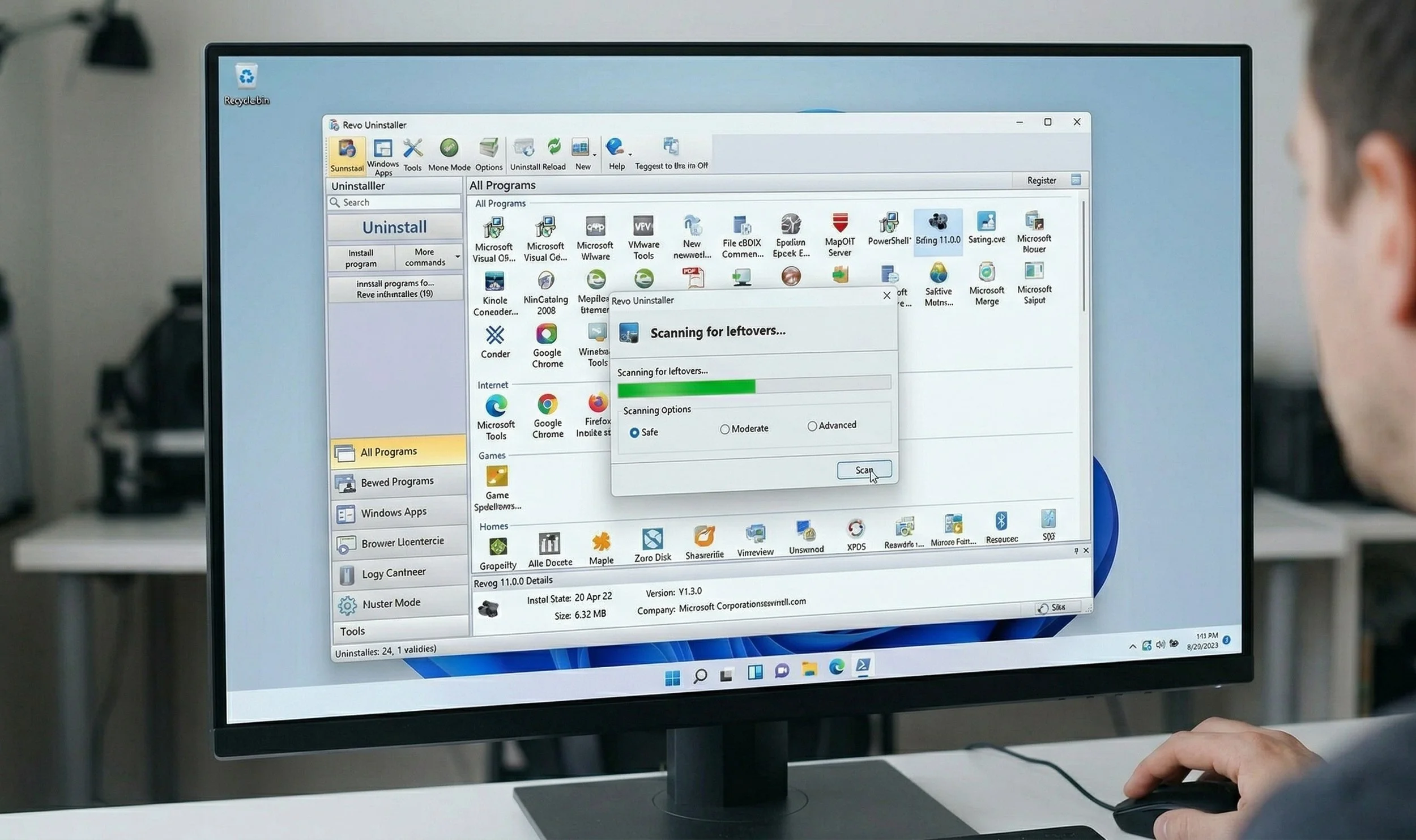
My all-time favorite removal tool is Revo Uninstaller. While the previous app removal tools I mentioned concentrate on debloating Windows system apps, Revo Uninstaller is one of the best tools to have if you want to remove third-party trialware. It does a sufficient job at scanning your entire Windows registry and file system for leftover files and folders. If you just purchased a computer from brands like Dell, HP, or Lenovo, and it comes pre-installed with trialware apps, your first order of business should be to download Revo Uninstaller. You’ll thank me later.
Wipe the Slate Clean
If you purchased a new PC and haven't removed the bloatware yet, erase it all and perform a full Clean Install of Windows 11. There are two ways you can do this: you can purchase the Windows 11 installation software from your respective vendors (Best Buy, Amazon, or Micro Center), which will usually run you $149-$199 (Windows 11 Home Edition and Windows 11 Pro).
Or you can choose the free alternative. You need a bit of technical know-how, but at least you won't spend any money. Download Windows 11 Media Creation Tool from the official Microsoft website. From there, you need to create a bootable USB drive. Preferably, an 8 GB or more USB drive and the Microsoft Media Creation Tool.
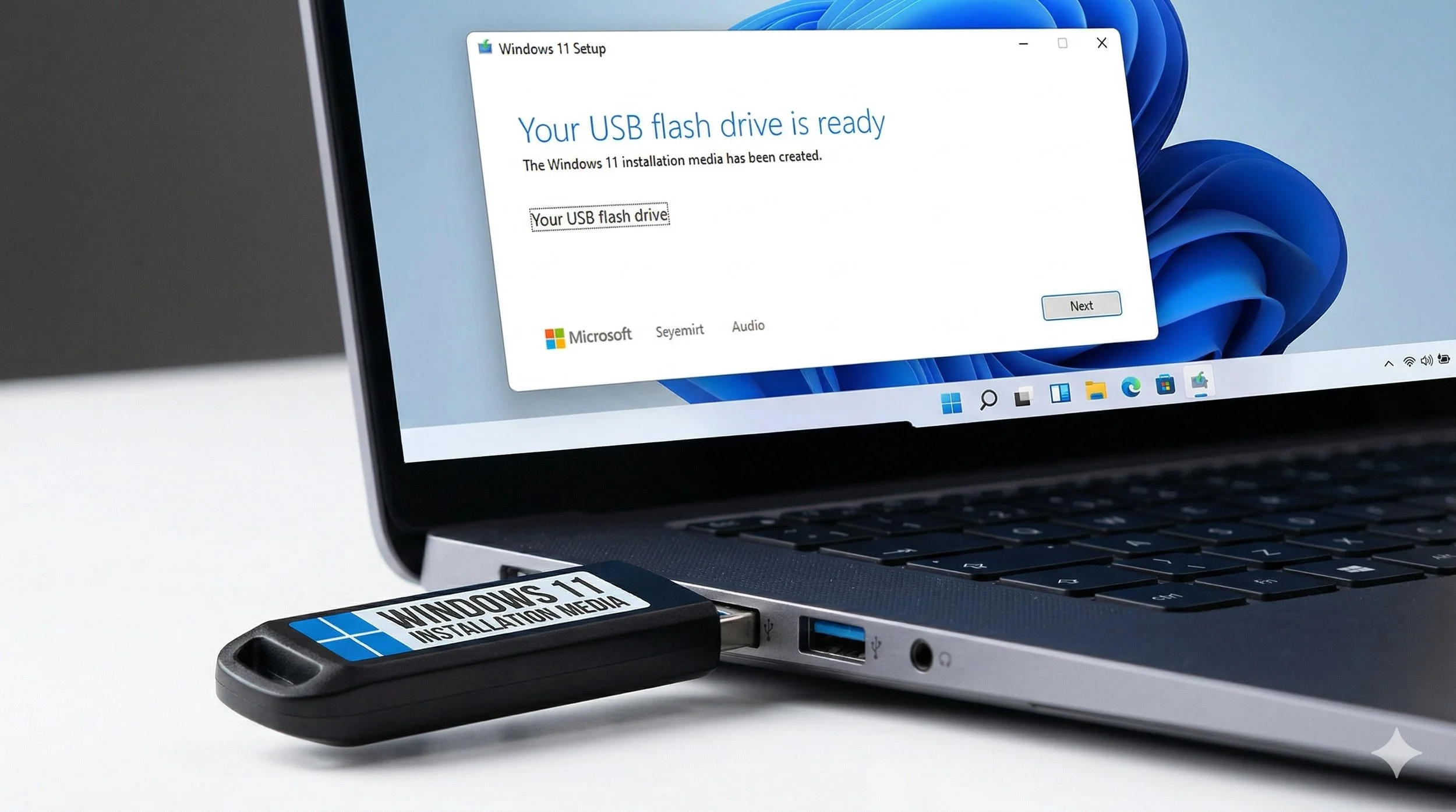
Firstly, select “Create” from the installation media. Depending on how many drives your computer has, the USB drive should have an assigned letter (a drive letter). If you’re using a laptop, you'll likely have one drive, which will be the "C" drive. That means whatever drive you add to your PC, in this case, the USB drive, will be assigned the letter “D”. Select the USB drive, and the Windows Media Tool will automatically download and format it. You now have legit Windows 11 installation software that can be used to perform a clean Install at any time on any system.
Why this should work, you ask? PC manufacturers like Dell, Lenovo, and HP often include their own software on factory images, which are considered suboptimal and come with excessive bloatware. A clean Install from Microsoft's official source operating system will bypass the added bloatware.
Before We Conclude, Here are some Important Safety Tips You Should Follow
Make sure you always create a restore point before using any third-party “debloater” applications. Go to System Properties > System Protection and create a Restore Point. If the tool accidentally removes critical software, you can always undo the changes with ease. Also, avoid drive-cleaning software that claims to “clean your registry” or boost your RAM speed. The famed CCleaner comes to mind, which is often bloatware itself. You’ll find this particular app pre-installed in many Windows-based branded PC’s, and, unfortunately, it can cause more harm than good.
If you follow my recommended methods for removing bloatware from your new PC, you’ll end up with a clean, well-functioning system.