
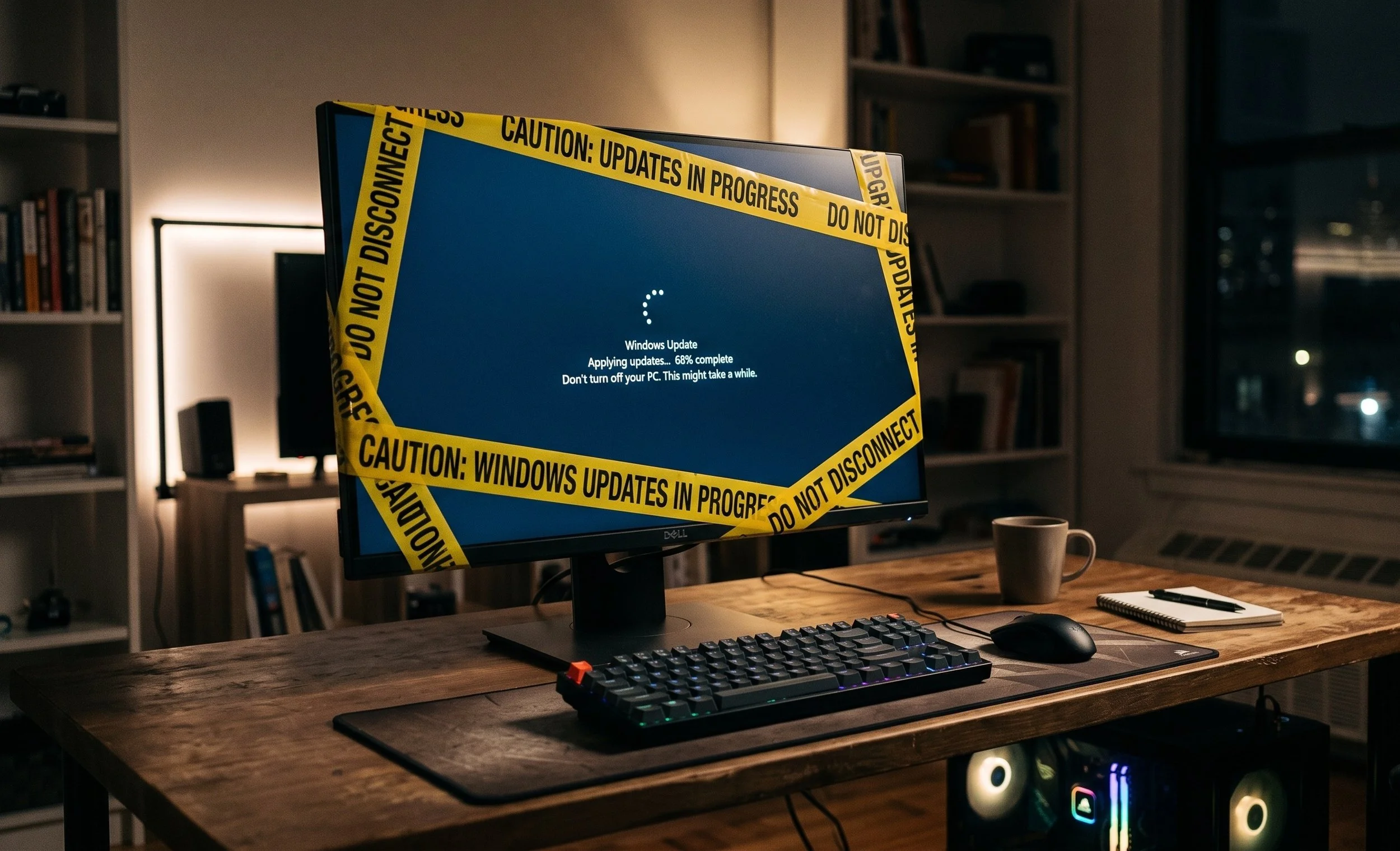
Run Windows Update With Caution, Here's Why
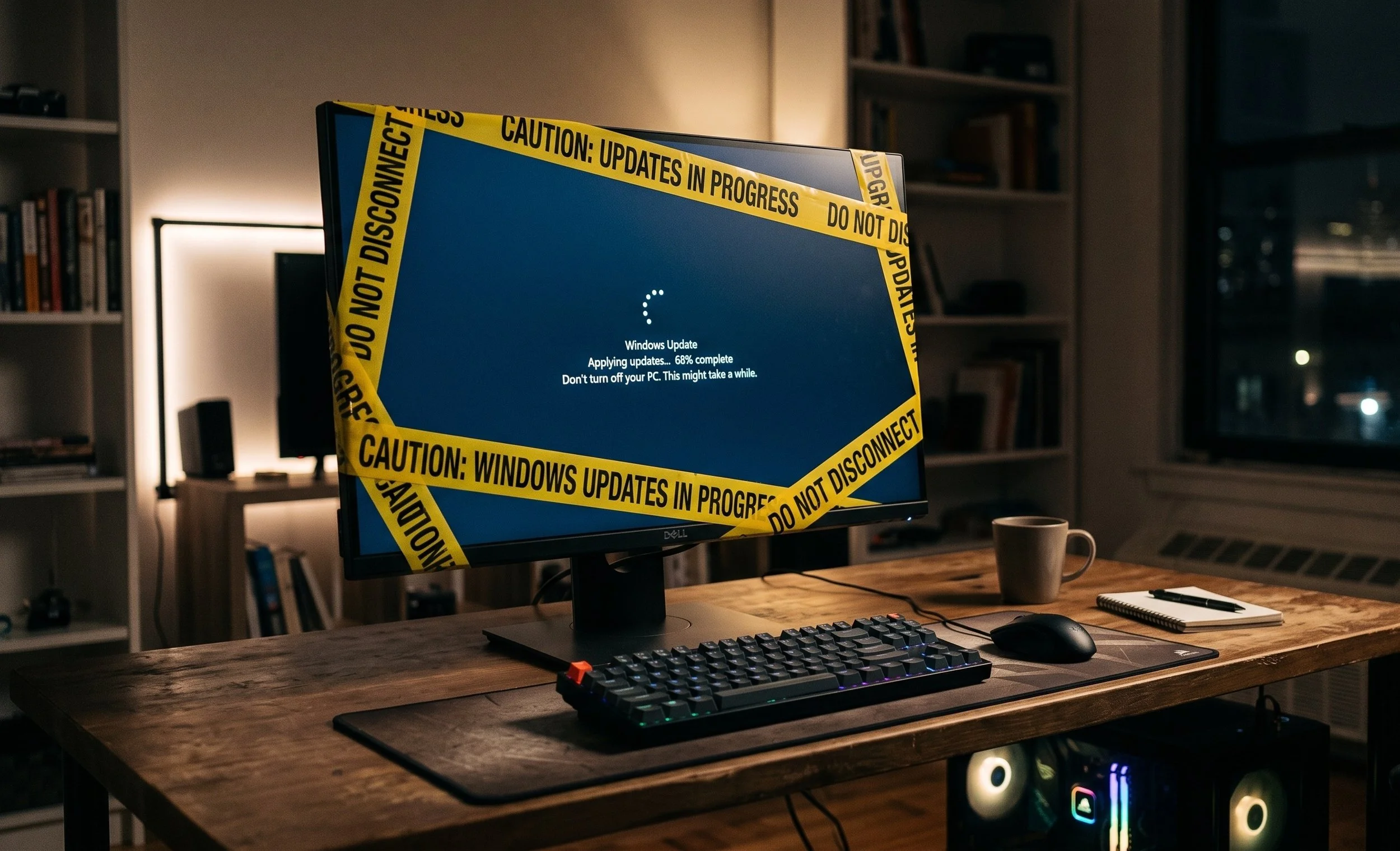
You would never think updating Windows would be a delicate balancing act, would you? On the one hand, keeping your computer system updated is the frontline defense against cyber threats — especially in this day and age, when hackers are devising inventive ways to exploit AI-assisted tools.
On the other hand, if you're a Windows user, you all know very well that "Update and Restart" can sometimes leave you feeling uncomfortable after an update. However, Microsoft has to push these updates that work across a variety of hardware (by the millions) and different software configurations, so, in a sense, something is bound to break, causing your system to become corrupt or inoperable. In my case, I recently applied critical updates to Windows 11, but for reasons unknown, my network connection was disabled, which led me to refresh Windows 11 and roll it back before the updates were applied.
Here's why you should approach Windows Updates with caution, and how to do so without exposing your system to failure.
Refrain From Applying Updates Quickly
When installing a major Windows update, the instant it drops, you're basically acting as a free beta tester. There are several risks to being an "early adopter" of Windows patches.
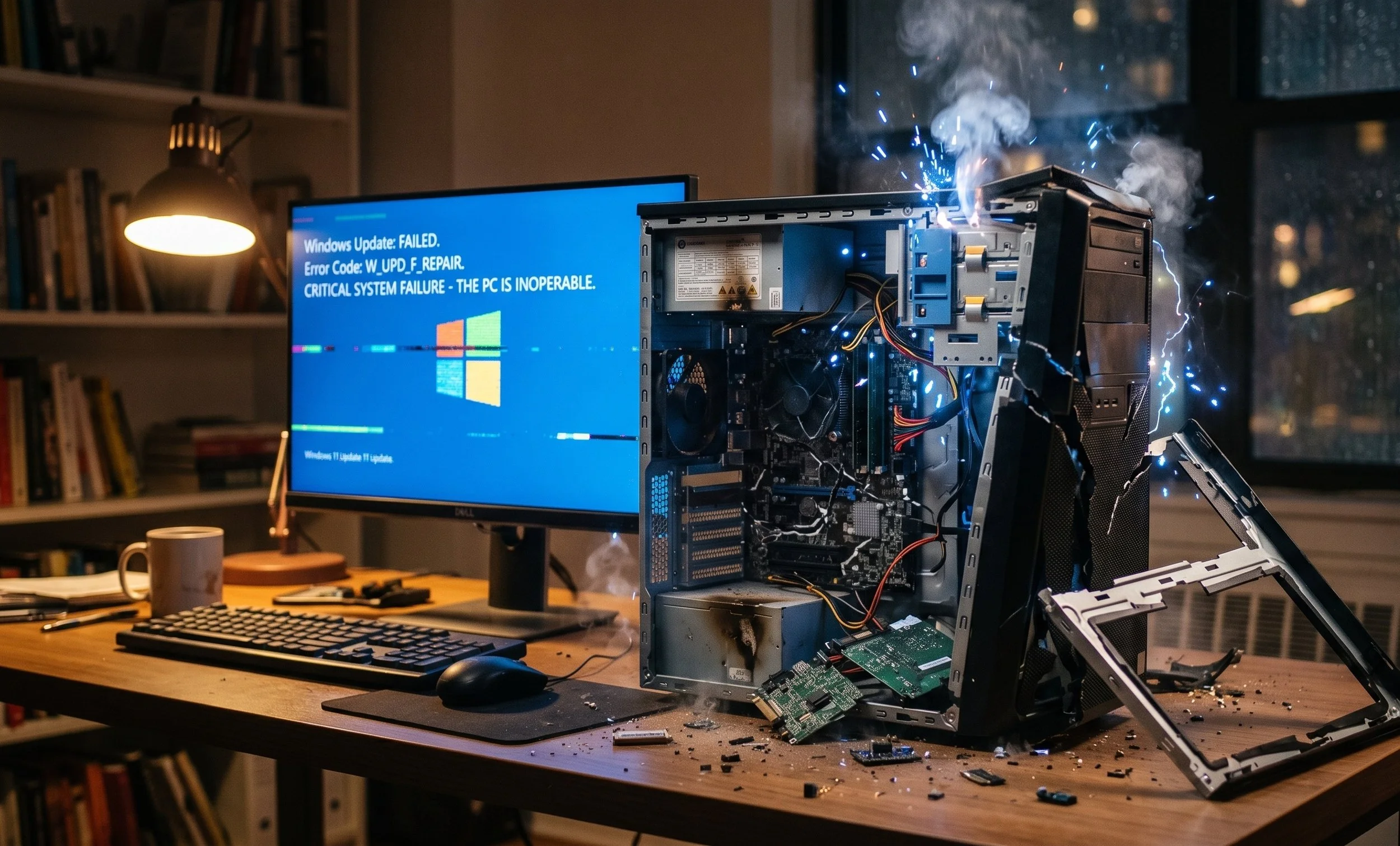
Software incompatibilities after rapid updates can turn off third-party software, especially deep-system utilities, VPNs, or antivirus applications. Even Microsoft’s own apps, such as Office, have been known to glitch after a series of updates.
Then there are the dreaded driver conflicts. Windows Update will often try to install generic or updated drivers for the graphics card, audio interface, or networking adapter. If there's a clash, you can end up with components functioning erratically, including the graphics card (flickering screen), audio distortion, or dropped WiFi connection, which, by the way, happened to me.
An even worse-case scenario is system instability, which can lead to boot loops. A bad update can also corrupt your entire system files, resulting in the infamous Blue Screen of Death.

Not Updating Poses a Risk
While there are reliable risks, holding back on updates can be a security hazard to the system. Security vulnerabilities are a constant, often being discovered daily. Even worse, malicious hackers are now aided by automated AI tools that can reverse-engineer security patches, creating exploits within hours of release. If you ignore security updates for weeks or months at a time, your system is left wide open for hackers.
Here's How to Update With Caution
You don't have to always choose between a compromised operating system and a disabled PC component. You can avoid the risks altogether with Windows Update by adopting a few intelligent habits. Firstly, try delaying quality updates (but not security updates). If you are currently using the Pro version of Windows, you can configure settings to separate "Quality Updates" (which often add unnecessary features and can be buggy) from "Security Updates" (which fix system vulnerabilities). On the other hand, if you're on Windows Home, you can "Pause updates for at least a week.
My recommendation is to pause updates for at least 3 to 7 days after "Patch Tuesday" (the second Tuesday of every month), which is more than enough time. Microsoft does a good job of pulling disastrous updates and providing hot fixes.
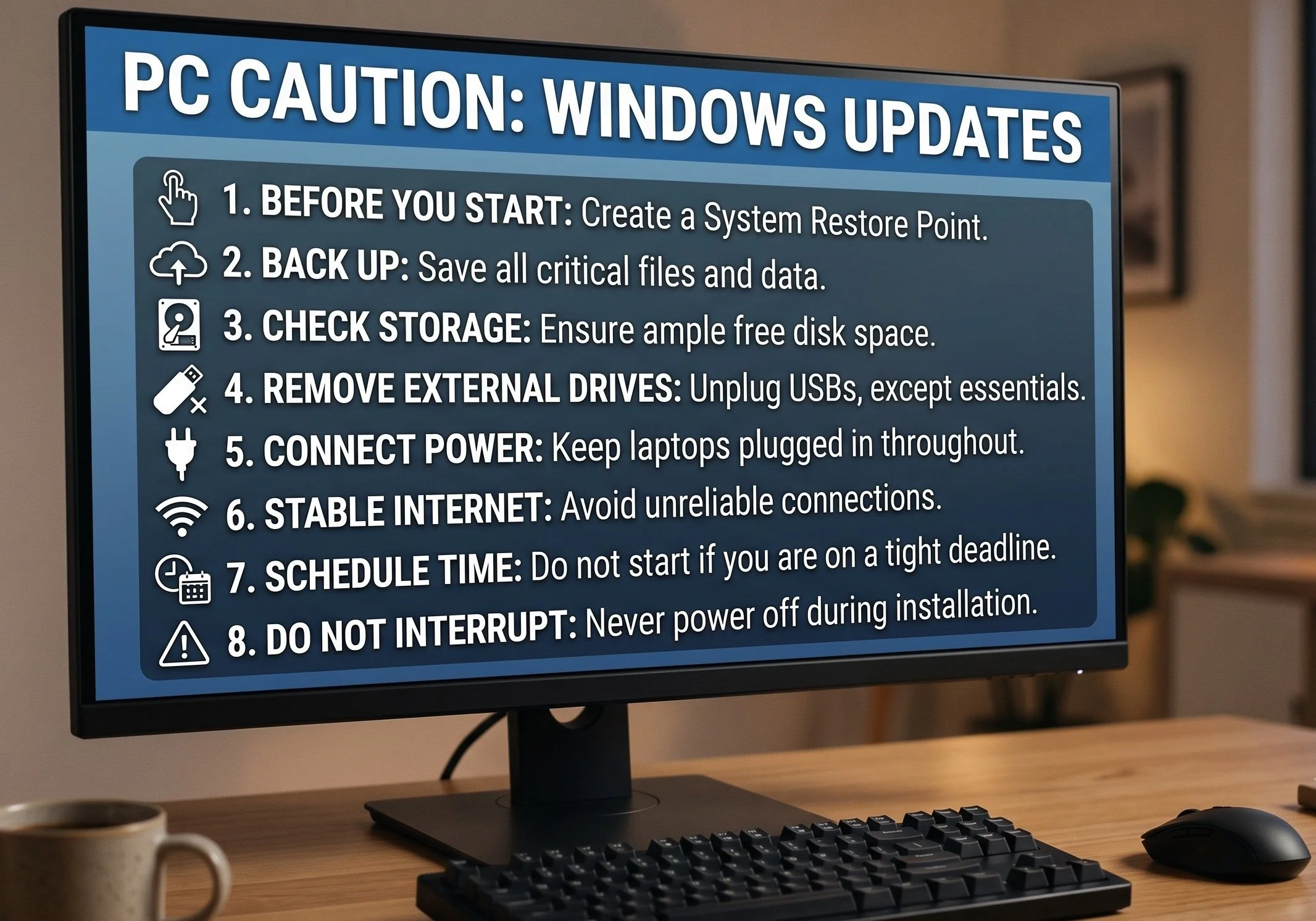
Create a Restore Point and Back up Crucial Data
Before you start messing with major Windows updates, take time to create a System Restore Point manually.
In the Windows search bar, type "Create a restore point".
Select your main drive and click Create.
If the update breaks your system, roll your PC back to its exact state before the update.
It should be common practice to back up your personal data before a system update. This ensures that your critical documents, photos, and project files are backed up to an external drive or a secure cloud service. This will avert future disaster.
The Conclusion
Running Windows Updates should not be impulsive, rushed, or ignored entirely. For me, the best approach is controlled delay. By pausing updates for just a few days after they drop, keeping your personal data backed up, and ensuring you have adequate system recovery tools on hand, you're protecting your PC from ongoing security threats without becoming an update beta tester. Carefully approach Windows Updates with patience to ensure a secure, stable system.